Anton Opic

AOProTec

AOProTec
Security

AOProTec

IN DEVELOPMENT

Security software for Windows. Real-time protection, memory and file scanning, behavioural monitoring, and a kernel-mode driver. Built to report honestly about what it can and cannot see.

Not available to buy yet.

πŸ”” Notify me when it's available

Pictures and videos

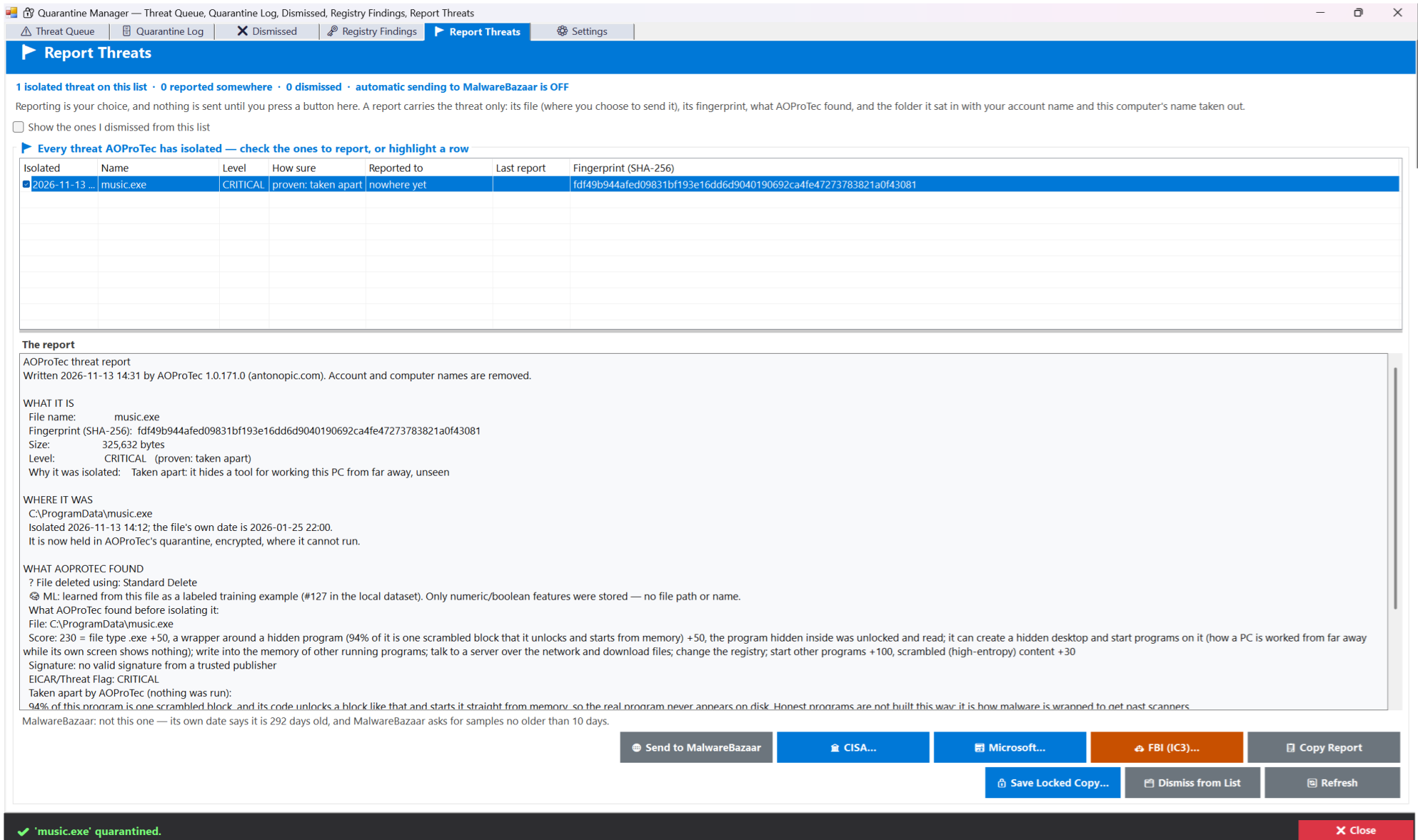
Report Threats in Quarantine manager
Added 23 Nov 2026

Report Threats

Report Threats in Quarantine manager

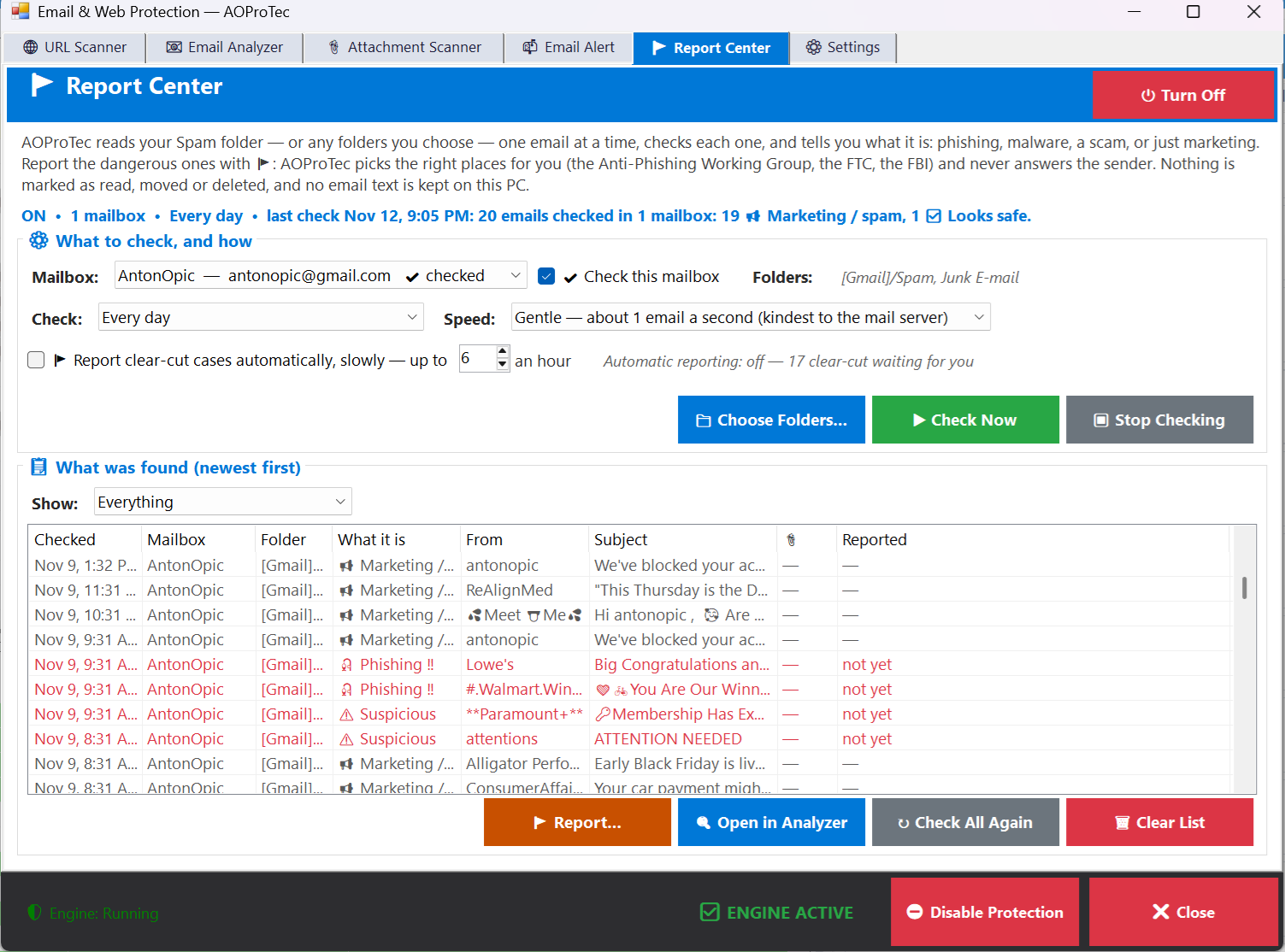
AOProTec Email & Web Protection - Report Center
Added 23 Nov 2026

AOProTec Email & Web Protection

AOProTec Email & Web Protection - Report Center

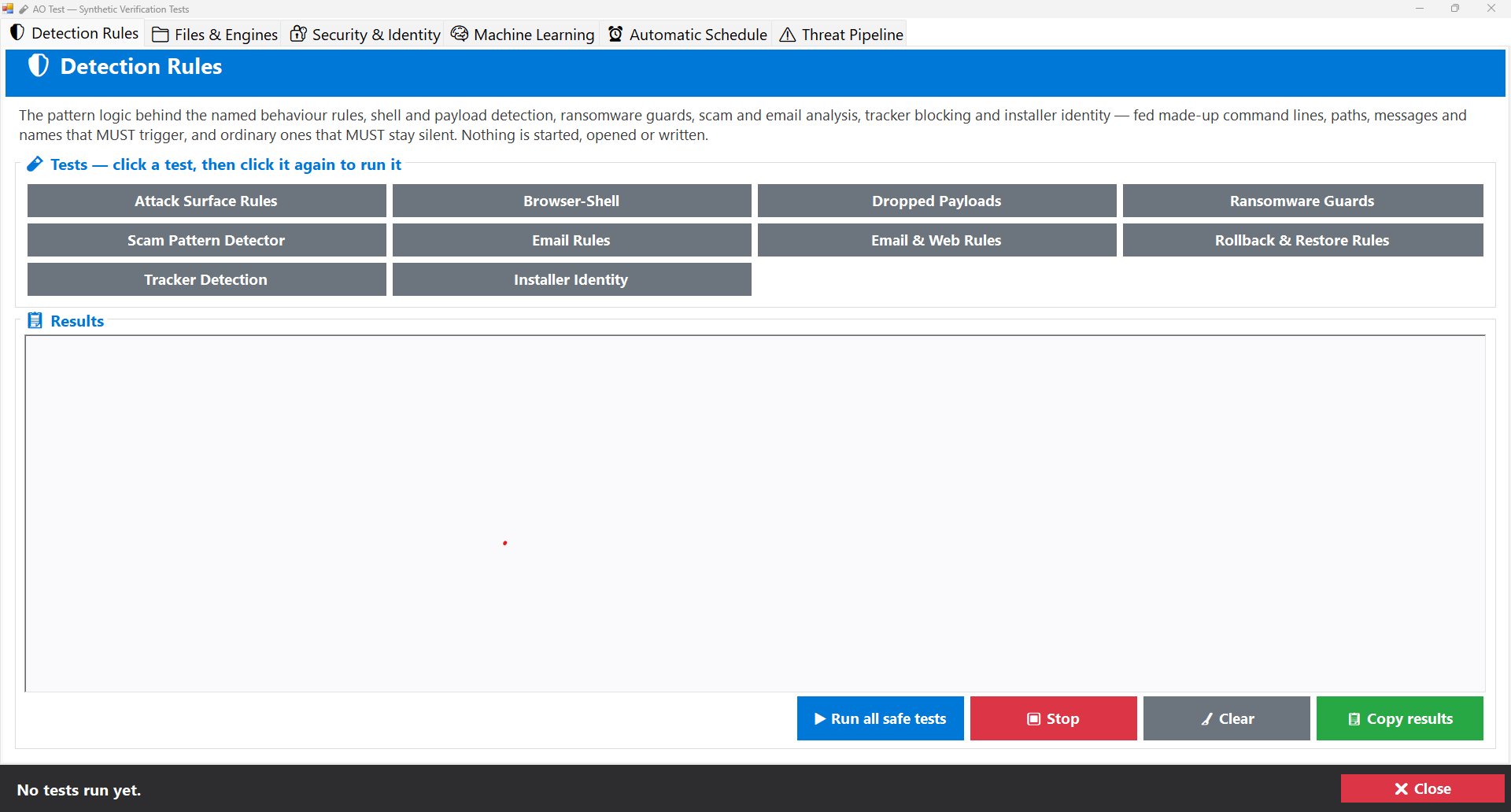
Detection Rules
Added 23 Nov 2026

AOTests Detection Rules

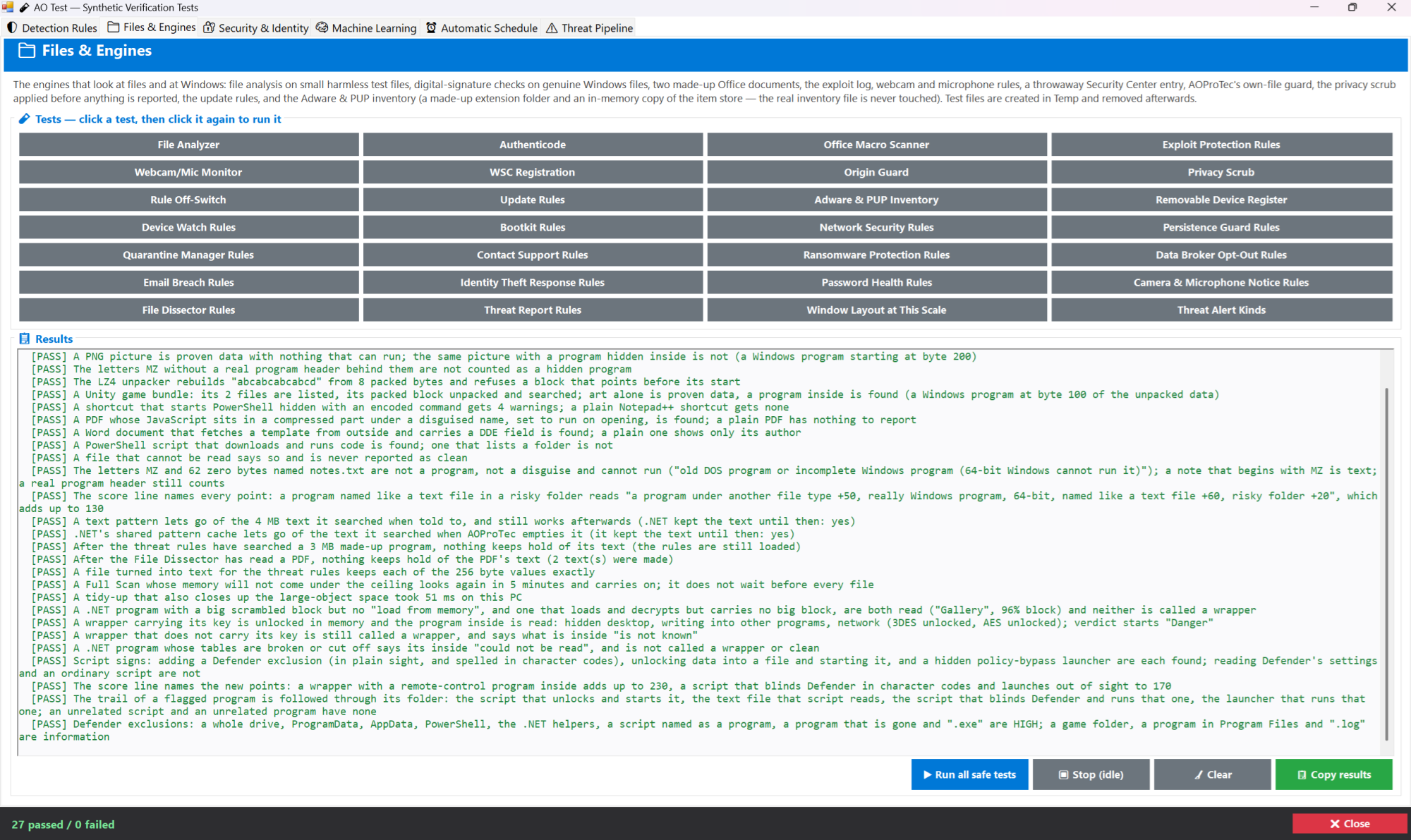
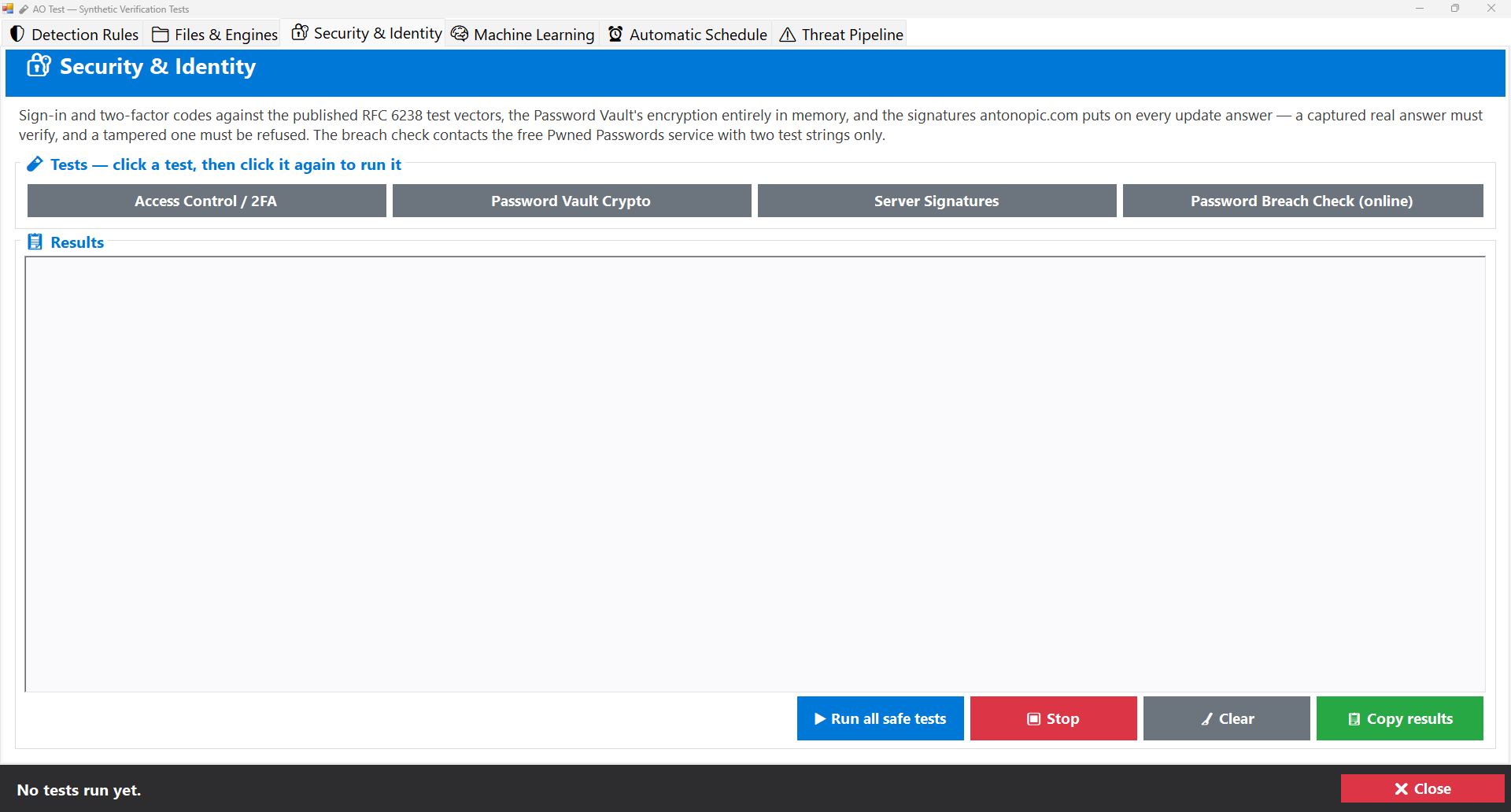
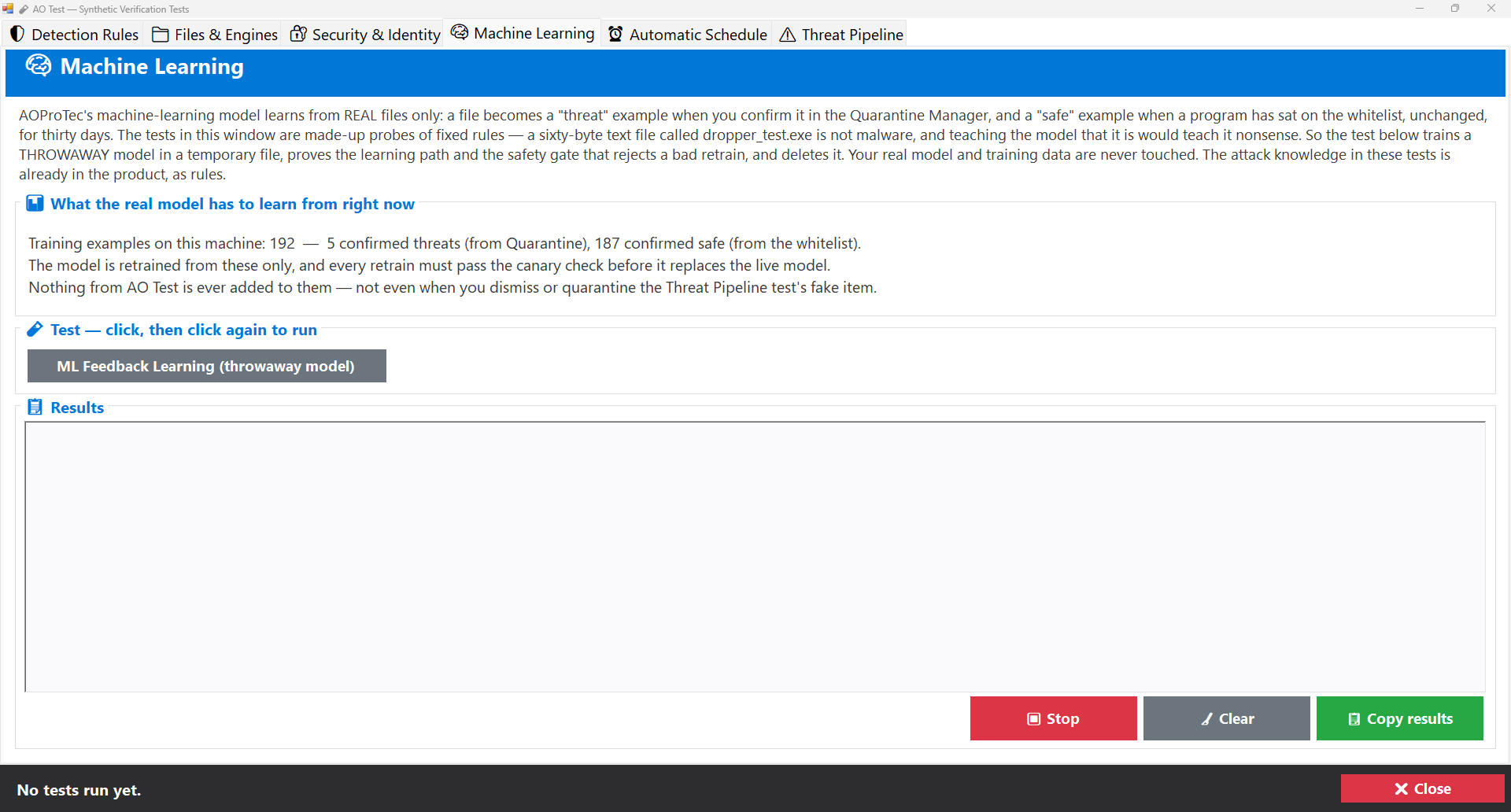
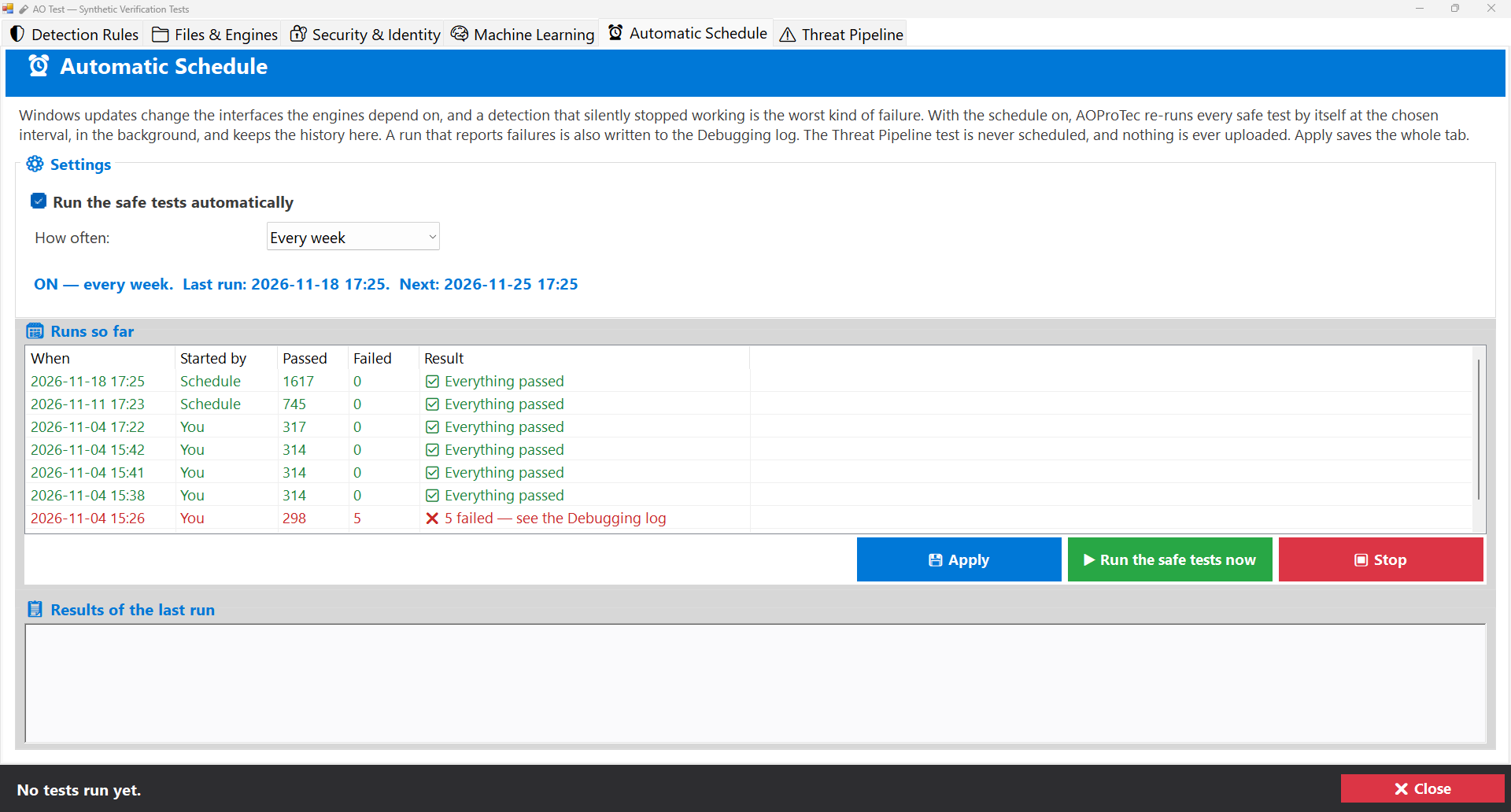
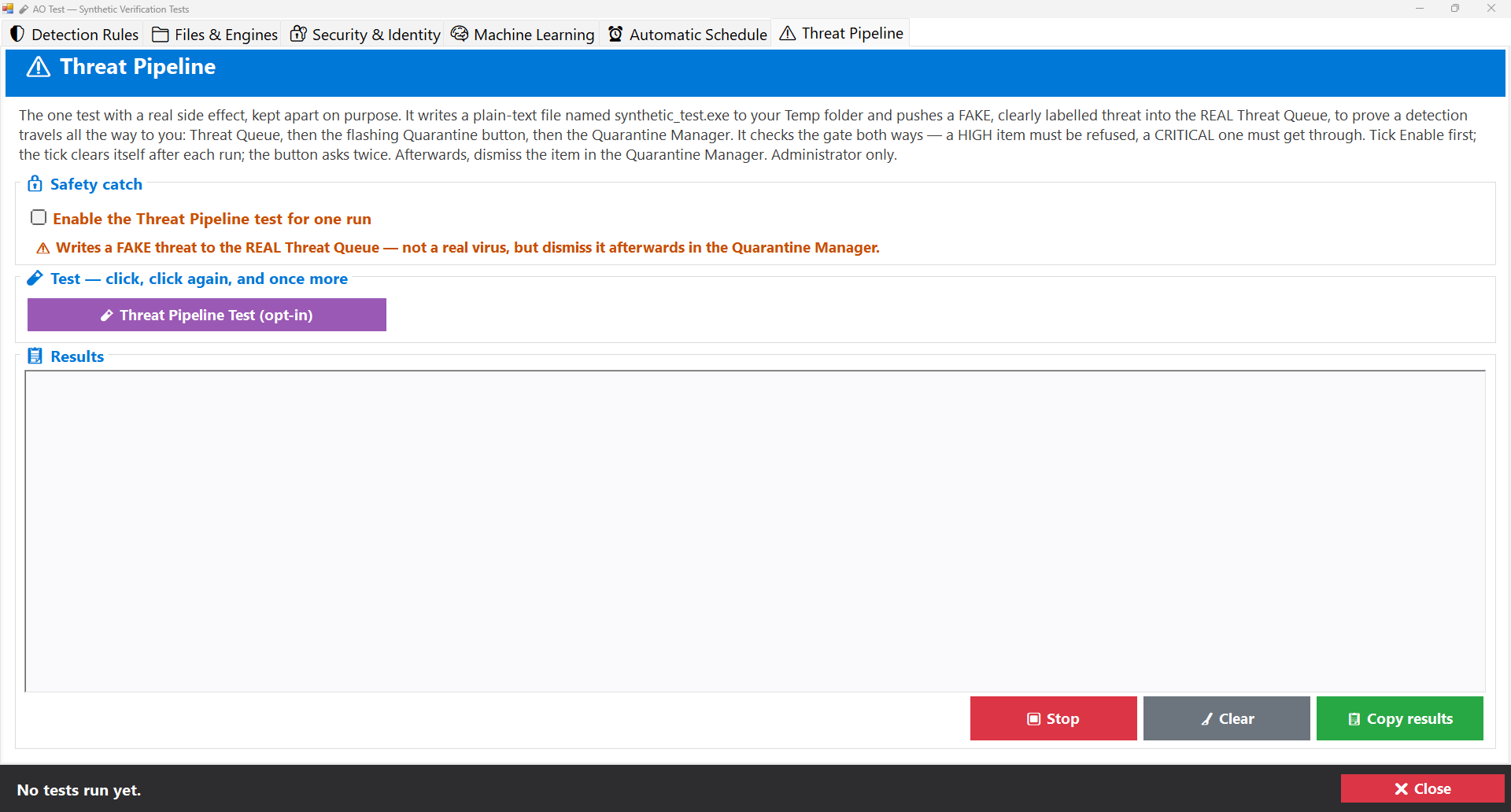
πŸ›‘ Detection Rules β€” the pattern logic itself: the eleven named behaviour rules, browser-started shells, payloads run out of Temp by Java or Windows Script Host, ransomware guards (decoys, raw-disk writes, backup and shadow-copy destruction, even inside an encoded PowerShell command), scam text, email rules and look-alike links, tracker blocking, installer identity. πŸ“ Files & Engines β€” file analysis, digital signatures, Office macros, the exploit log, webcam/microphone rules, Security Center, AOProTec's own-file guard, the privacy scrub, update rules. πŸ” Security & Identity β€” sign-in and two-factor against the published RFC test vectors, vault cryptography in memory, and the server's signatures: a real signed answer from antonopic.com must verify, and the same answer with one digit changed must be refused. 🧠 Machine Learning β€” the learning path on a THROWAWAY model, and a live count of what the real model learns from (see below). ⏰ Automatic Schedule β€” the safe tests re-run by themselves every day, three days, week or two weeks, with the history kept. ⚠ Threat Pipeline β€” the one opt-in test with a real side effect.

Files & Engines
Added 23 Nov 2026

AOTests Files & Engines

AOTests Files & Engines

Security Identity
Added 23 Nov 2026

AOTests Security Identity

AOTests Security Identity

Machine Learning
Added 23 Nov 2026

AOTests Machine Learning

AOTests Machine Learning

Automatic
Added 23 Nov 2026

AOTests Automatic

AOTests Automatic

Threat Pipeline
Added 23 Nov 2026

AOTests Threat Pipeline

AOTests Threat Pipeline

Help Documentation Debug
Added 23 Nov 2026

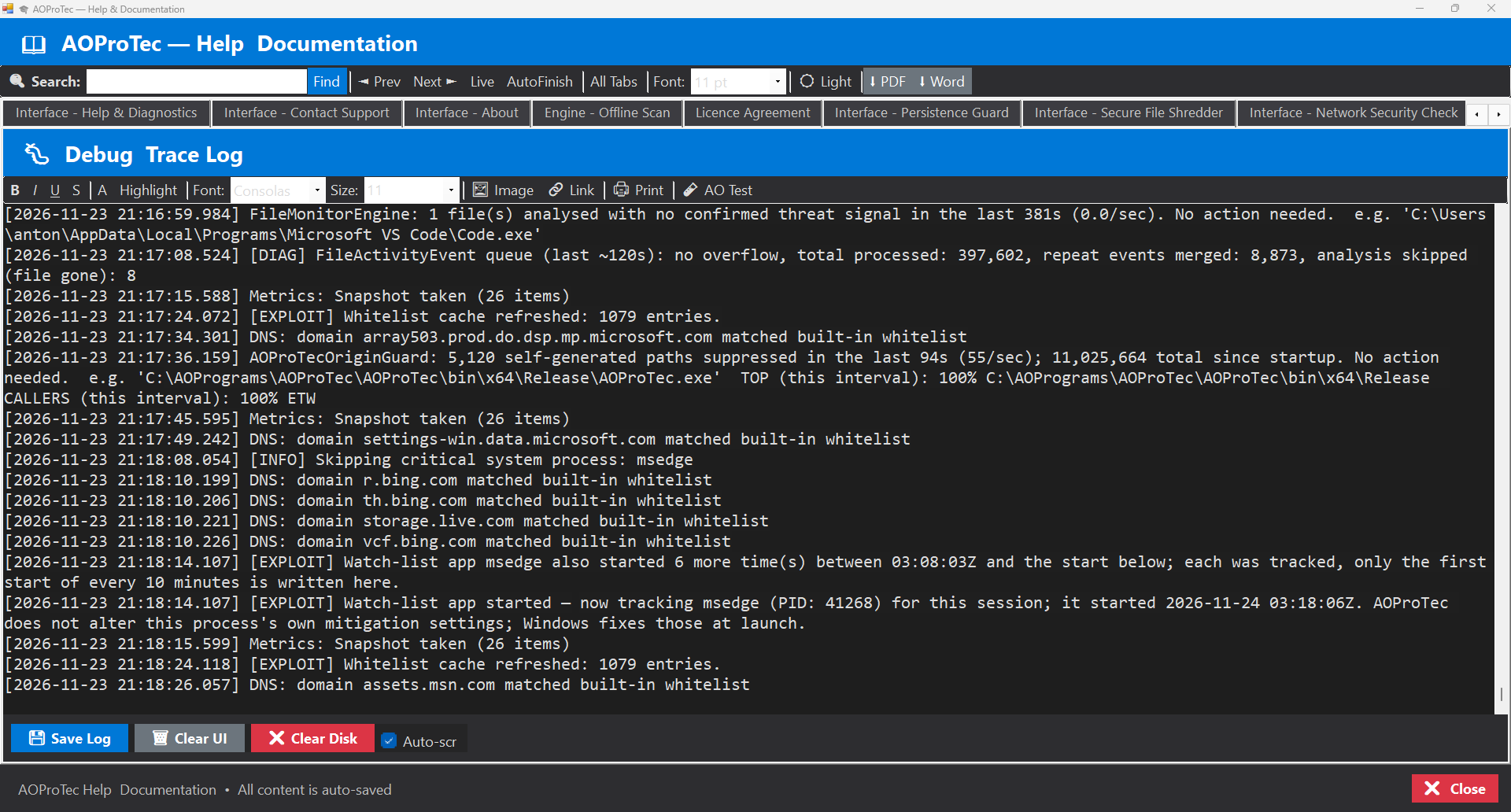
AOProTec Help Documentation Debug

Help & Diagnostics (this window) β€” Interface Guide
═══════════════════════════════════════════════════════════════

🎯 WHAT THIS WINDOW IS FOR
-------
The complete manual for AOProTec β€” what it does, how it works, and how to use it β€” plus the live diagnostic view of the running application. It is both the documentation and the instrument panel.

πŸ“š HOW THE TABS ARE ORGANISED
-------
Overview start here. Network Isolation & placed early on purpose: it is the tab you Recovery need in an emergency, and scrolling for it while a machine is compromised is no time to be searching. Interface - … one per window: what it is for, every control on it, and how to use them. Engine - … one per engine: what it does underneath. My Notes, Errors, Debug your notes and the live diagnostic tabs.

Each protection area generally has BOTH an Interface tab and an Engine tab β€” one for the window you look at, one for the machinery behind it.

πŸ“ MY NOTES TAB
-------
A free-text scratchpad that saves automatically and survives restarts. βž• Add Note has 🎀 Speak: Windows voice typing (Windows key + H) in the note box. Windows sends the voice to Microsoft's online speech service to make the text, so it needs internet and Online speech recognition turned on (Settings β–Έ Privacy & security β–Έ Speech). πŸ’Ύ Save writes your notes as a table (Done, Date, Note) in the format you pick β€” Text, PDF, HTML, Excel, Word, CSV, Rich Text, JSON, XML, LibreOffice and more. Errors and Debug save the same way (Time, Message).

❗ ERRORS TAB
-------
Genuine failures only. This tab staying empty is meaningful β€” it is the fastest way to tell whether AOProTec itself is healthy. Routine conditions are deliberately kept out of it so that anything appearing here is worth reading.

🐞 DEBUG TAB
-------
The live activity stream: what the engines are doing, moment to moment. Useful when you want to confirm something is actually happening rather than assume it.

It is a VIEW, not the record. Under heavy activity the display skips ahead to keep up and says so β€” nothing is lost from the log file on disk, only from what is drawn on screen. Detection never depends on this window being open.

While this window is hidden in the tray it takes no work at all. When you open it, it shows "⏳ Loading…" and then the newest 1,000 lines from the log files at once β€” no catching up β€” and carries on live from there.

The toolbar carries Print and πŸ§ͺ AO Test, which runs the synthetic verification suite β€” see the AO Test tab.

πŸ’Ύ WHERE THIS CONTENT LIVES
-------
Tabs are written to %APPDATA%\AOProTec\Help. Copying tabs.xml to another machine carries every tab with it, including any written by hand. The .rtf files beside it are regenerated on each launch, so they do not need copying.

Content maintained in code takes precedence over the stored copy, so updated documentation always reaches the screen rather than being blocked by an older saved version.

Help Documentation Max Parallel Scan Threads
Added 23 Nov 2026

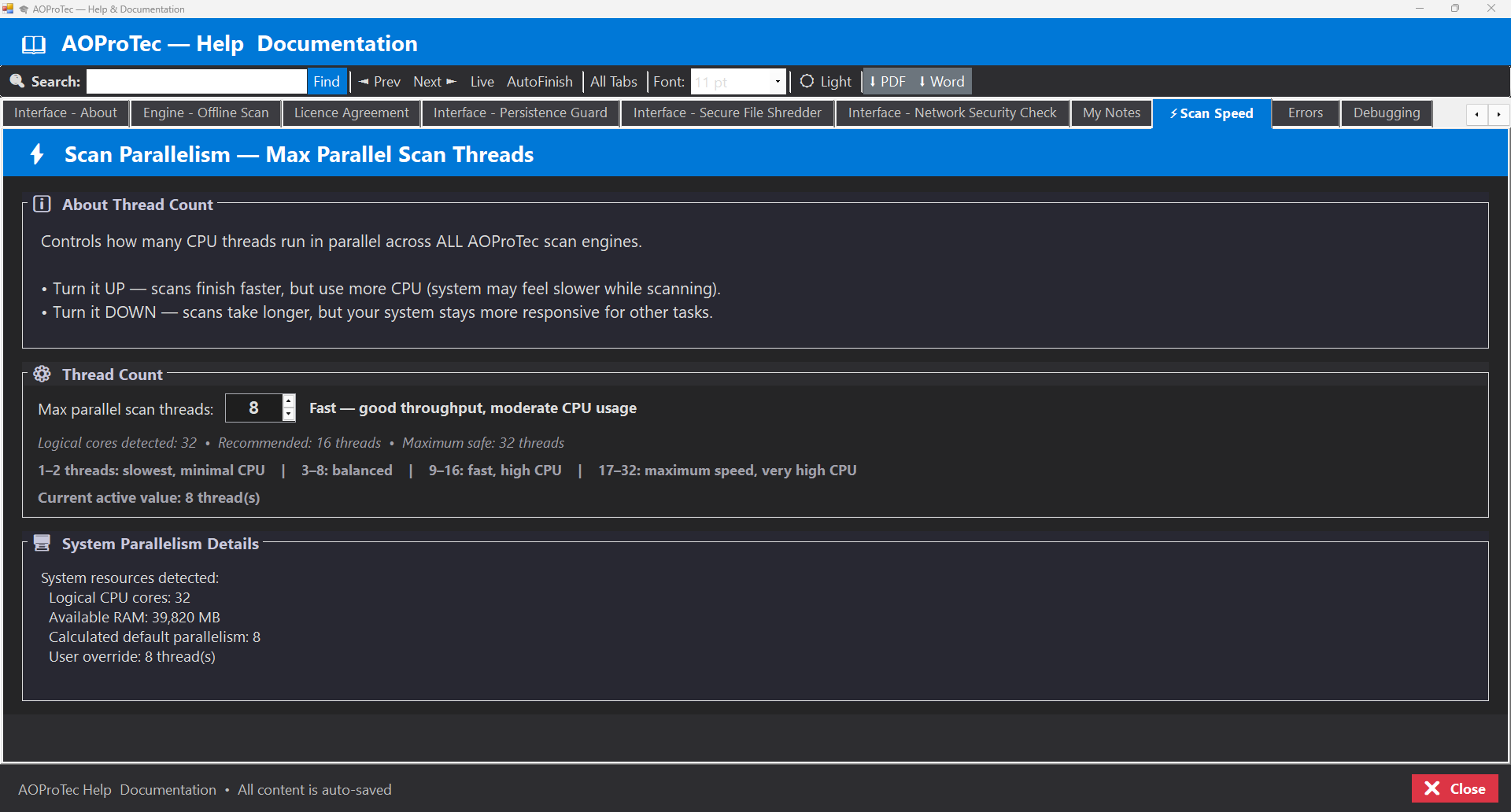
AOProTec Help Documentation Max Parallel Scan Threads

Help Documentation Max Parallel Scan Threads

Development updates

14 November 2026

AOProTec now looks at every drive you plug in, and at what the drive itself is asking for.

A USB stick, an external hard disk, a memory card: a drive that arrives in a pocket is one of the oldest ways for malware to travel. AOProTec 1.0.178 scans every drive plugged in from outside, and reads the two things only a plugged-in drive can show.

Read the whole updateClose this update

Malware does not need the internet. A USB stick found in a car park, a friend's external disk, a memory card from a camera: each one carries files past every firewall, straight into the computer. This has been a real route for a long time, and it still is.

Version 1.0.178 of AOProTec is built around that. USB / Removable Device Control is the eighth window to go through my routine: read every line, measure it on two real computers, then build and test before I sign.

It starts with knowing which drives came from outside. Windows knows how every drive is connected: over USB, as a memory card, or on the computer's own internal connections. AOProTec now asks Windows exactly that. A drive that is plugged in from outside is listed and scanned, and that includes external hard disks and SSDs, which Windows otherwise files together with the drives inside the computer. The drives inside the computer are left to Full Scan, which is built for them.

A drive is scanned the moment it is plugged in, whenever you press Scan Device, and on a schedule while it stays plugged in. Every file goes through the same file analysis that guards the rest of the computer. While a drive stays plugged in, the scheduled sweep looks at what changed on it since its last scan, so a large external disk is read in full when it arrives and not again every few hours.

Then there is what the drive itself is asking for. Before its files are scanned, AOProTec reads two things at the top of the drive.

The first is a small file called autorun.inf. It can tell Windows to start a program when the drive is opened. Malware that travels on drives writes exactly that pair: a program, and an autorun.inf that names it. When the program it names carries no valid signature, AOProTec sends that program to the Threat Queue, with the line that names it as evidence.

The second is a shortcut. One family of USB malware hides your folders and leaves shortcuts with the same names in their place. You click what looks like your folder, and the shortcut quietly starts a command instead. AOProTec reads each shortcut at the top of the drive without running it. One that starts a command tool rather than opening a folder or a document goes to the Threat Queue, and the evidence says so when a hidden folder of the same name sits beside it.

Both go to the queue as worth examining, not as proven. The queue examines the file and tells you, and you decide in Quarantine Manager. Nothing is deleted from the drive behind your back.

A drive is also yours to allow or to refuse. One button marks a drive as yours. Another blocks it for good, and on Windows Pro, Enterprise and Education a blocked drive is refused by Windows itself before it can do anything. There is now one mark and one block for each device, kept on the record of the device itself, whichever tab of the window you use. If you want the strict setting, AOProTec will scan and then eject every drive that is not marked as yours.

Ejecting is done the way Windows' own Safely Remove Hardware does it, so the drive is an ordinary drive again the next time you plug it in. And a drive that arrives with no drive letter, although AOProTec has seen it as a drive before, is given its letter back, so it never sits there plugged in and invisible.

I watched it work on my test laptop with a real USB stick. I plugged it in, marked it as mine, and AOProTec scanned its 2,642 files in a little over a second. Then I put a made-up, harmless program on the stick with an autorun.inf that named it, and a shortcut dressed up as a folder of holiday photos with a hidden folder of the same name beside it. I pressed Scan Device. Within a tenth of a second both files were in the Threat Queue, each with its reason written out, and a few seconds later the laptop told me about them. I dismissed them, and the test files came off the stick again.

Before I sign a version it has to pass on my test laptop. This one passed 1,273 checks there, 25 of them written for this window alone.

What happens to a threat is still decided in one place, Quarantine Manager. Removable Device Control finds it on the drive and hands over the file.

Every window is getting this treatment, one at a time.

14 November 2026

AOProTec now knows which program is changing your files.

Ransomware does one thing no ordinary program does: it rewrites your files, fast, and leaves them unreadable. AOProTec 1.0.177 is told by Windows itself which program made every change in your protected folders, and judges each program by what it does to files it did not create.

Read the whole updateClose this update

Ransomware is easy to describe. It goes through your documents and pictures, rewrites each one so that only it can read them, and asks for money to undo it. What matters is catching it in the first seconds, before much is lost, and being sure which program is doing it.

Version 1.0.177 of AOProTec is built for that. Ransomware Protection is the seventh window to go through my routine: read every line, measure it on two real computers, then build and test before I sign.

It starts with knowing who. Windows itself reports every file a program creates, writes, renames or deletes, and each report carries the program that did it. AOProTec reads those reports for your protected folders: Documents, Desktop, Pictures, Videos, Music, Downloads, and any folder you add. Every change has a name on it.

Then it judges what the program does. Only changes to files the program did not create itself are counted, so a program saving its own work or downloading a new file is left in peace. A file written in many pieces counts once. Five things are looked for.

Speed. Twenty files changed, renamed or deleted within five seconds. The five seconds slide along with the program, so it is judged the same in its first moments and after hours of running.

The same new ending. Ransomware usually renames what it has encrypted: report.docx becomes report.docx.xyz. Eight files given the same new ending within a minute is a sign, whatever the ending is. The endings of well-known ransomware families are on a list of their own and count for more.

Files that are no longer what their names say. A picture has a recognisable beginning. So has a document, a song, a video, an archive. After encryption the name still says picture and the contents are random bytes. AOProTec opens the beginning of a changed file and looks. Five such files within a minute is proof.

A note in several folders. Ransomware leaves its demand where you will find it: the same file, named something like HOW_TO_DECRYPT.txt, in folder after folder.

Each sign is worth points, and 150 confirms. Proof in the files themselves is worth 150 on its own. Deleting the computer's backups or writing to the disk's boot records, which AOProTec already watched for, count 100 and add to the same score.

When a program is confirmed on proof in the files, it is ended at once, with a record of the evidence taken first, because every second it runs costs more files. Its file goes to the Threat Queue marked critical, the computer is cut off the network so nothing can spread or call home, and the network comes back by itself after the time you set.

Below 150 nothing is stopped. A program with no valid signature that shows a sign has its file sent to the Threat Queue to be examined, and you decide in Quarantine Manager with the reasons written out. A validly signed program that shows a sign is noted in the history.

Some programs only carry out instructions written by someone else: PowerShell, the command prompt, Python. When one of those is what changed the files, the file AOProTec sends to be examined is the script it ran.

There is a new guard beside the one for backups. Before they encrypt, many ransomware families stop the services that could get in the way or help you recover: shadow copies, Windows Backup, databases. One stopped service is ordinary. Several within a minute is handled the same way as deleting the backups.

AOProTec now has one approved list. A program you approve in Application Control is approved for Ransomware Protection as well, for that exact file. If the file is rebuilt or replaced, it is judged again.

The window has a new tab, Folder Activity. It lists every program that changed files in your protected folders: how it is judged, how many files it changed, renamed, deleted and made, its busiest five seconds, its points, and what happened to any finding. The record is kept for thirty days. One button there approves a program in Application Control.

I watched it work on my test laptop. A made-up, harmless program with no signature rewrote twenty-five text files in about a second. A little over a second after it began, its file was in the Threat Queue with the list of the files it had touched, and it had its row on Folder Activity. Nothing was stopped, because speed alone is a sign and not proof.

Then I let it do what ransomware does. It began overwriting made-up pictures with random bytes, six of the eight in the folder. AOProTec looked at the changed files, found six that were no longer pictures, and ended the program three and a half seconds after it had started on the first one. The last two pictures were never touched. Its file was in the Threat Queue marked critical, the alert went out to my phone, and about a second later the laptop was off the network. Fifteen minutes after that the network came back by itself.

Before I sign a version it has to pass on my test laptop. This one passed 1,248 checks there, 70 of them written for this window alone.

What happens to a threat is still decided in one place, Quarantine Manager. Ransomware Protection finds it, names the program, and hands over the file.

Every window is getting this treatment, one at a time.

14 November 2026

AOProTec now knows who every program is talking to.

Every program on your computer that goes online is now on a list: who signed it, when it first went online, and every server it reached, by name. AOProTec 1.0.176 keeps that list across restarts, and sends an unsigned program's file to be examined when it behaves on the network the way malware does.

Read the whole updateClose this update

Most of what a computer does online happens where you cannot see it. A program opens a connection, sends something, closes it. It takes a fraction of a second.

Version 1.0.176 of AOProTec keeps a record of it. Network Traffic Monitoring is the sixth window to go through my routine: read every line, measure it on two real computers, then build and test before I sign. It has six tabs now.

Programs is the new one. Every program that goes online gets a row: its file, who signed it, when it was first and last online, how much it sent and how much it received. Choose a row and you see every server that program reached, by address and by the name it looked up to find it. So you read "api.example.com", and the numbers beside it.

The record is kept across restarts. A program that went online for the first time in the last day is marked, so something new stands out.

AOProTec looks at the list of connections once a minute. Between those looks, Windows itself reports every connection a program opens, at the moment it opens it, and AOProTec reads those reports too. A connection that lasts a fraction of a second is counted and timed like any other.

Live Connections shows what is open right now, for both kinds of internet address, the older IPv4 and the newer IPv6. Each connection has the program that owns it, the name of the server, whether the program opened it or answered it, and Windows' own count of what was sent and received.

DNS shows the names your programs looked up, with the program that asked, and the names that were blocked and why.

Going online is not a verdict. What AOProTec looks for is what malware does on a network. It calls one server on a precise timer, to ask for orders. It probes many ports on one computer, looking for a way in. It opens a burst of connections. It looks up a stream of machine-made names.

A program whose file is validly signed and does one of these is listed as a notice, and nothing more. Update checkers and game launchers keep a timer too.

A program whose file has no valid signature is a different matter. Its file goes to the Threat Queue. The queue examines it and either clears it or leaves the decision to you in Quarantine Manager, with the reasons written out.

I watched it work on my test laptop. A made-up, harmless program with no signature opened connections to twenty-one ports on one computer. At AOProTec's second look it was reported as probing ports. Its file was in the Threat Queue, and the finding was on the Findings tab with what had been done about it. A second program, which only answered those connections, was left alone, as it should be.

Findings keeps everything that was reported, with what was done about each, also across restarts.

One finding has an automatic response. When an unsigned program calls a single server on the internet on a precise timer, measured by Windows itself, AOProTec cuts that program off from that server for one hour. Nothing else on the computer is affected, and the rule lifts itself.

Before I sign a version it has to pass on my test laptop. This one passed 1,204 checks there, 69 of them written for this window alone.

Network Traffic Monitoring ends no program by itself. It watches, keeps the record, and sends what is suspicious to be examined. What happens to a threat is decided in one place, Quarantine Manager.

Every window is getting this treatment, one at a time.

14 November 2026

Primary control surface for AOProTec: start/stop monitoring, inspect processes, run forensics, quarantine, and remediate.

This section explains not only what the UI shows, but the exact step-by-step actions to take when nothing is happening and when a threat appears.

Read the whole updateClose this update

Quick start (activate protection)
1) Click 'Load Apps' to enumerate running processes.
- Button: 'Load Apps' (corresponds to `buttonApps`).
- What this does: populates the two lists: 'Newly Opened Processes' and 'All Processes'.
- Tip: the top status bar updates to: AOProTec | {start time} | Uptime | Admin | Active after you start monitoring.

2) Review the lists and confirm there are items. If lists are empty, click 'Load Apps' again.
- Use search, filters and column sort to find items quickly.
- Use the radio buttons to set export format (JSON or CSV) before exporting.

3) Start real-time monitoring
- Click 'Start' (`buttonStart`) to enable the MonitoringService and local watchers.
- When started: the status label will show 'πŸ›‘οΈ ACTIVE' and engine toggles become authoritative.
- If you prefer manual triage only, you can keep monitoring off and use 'Load Apps' for snapshots.

Threat-focused workflow (when a suspicious process appears)
1) Prioritize by threat column and color:
- Colors: LOW (green), MODERATE (yellow), SUBSTANTIAL (orange), SEVERE (orange-red), CRITICAL (red), UNKNOWN (blue). TRUSTED (on your trusted list) and SYSTEM (a Windows kernel object with no file) are left uncoloured.
- Rest the mouse on any row to see WHY it got its level, in plain words: who signed the program, the company and version, VirusTotal's count when it has one β€” or what AOProTec could not check and why (for example, the program closed before its file could be read).
- Signed through a Windows catalog: many Windows files carry no signature of their own; Windows vouches for them in a signed list of its files (a catalog). AOProTec reads that list too, so such a file shows "Signed by Microsoft Windows, through a Windows catalog" and counts as signed β€” the same answer Windows itself gives.
- UNKNOWN means AOProTec checked and found too little either way β€” no trusted signature and too little else to judge by. It is never used for a file Windows says Microsoft signed. Click Investigate for the full check.
- Always inspect CRITICAL / SEVERE first β€” these are high-confidence artifacts, and per AOProTec's severity gate, the only ones that ever reach the actionable Threat Queue by default.

2) Select a process to inspect
- Click the row in either list; the options panel opens with actions and a WebView2 details pane.
- Key fields: Process Name, Path, Description, Threat Level, VT summary (if available).

3) Rapid enrichment
- Click the 'Search' link in the options area to open WebView2 with VirusTotal or a focused web search.
- Description column prefers file metadata; remote lookups use DuckDuckGo -> Wikipedia -> Bing fallback.

4) Capture forensics BEFORE destructive actions
- Press 'Forensics' (`buttonForensics`) to snapshot memory/process and preserve evidence.
- The quarantine flow now takes a SnapshotEngine "before image" snapshot automatically as well (see "Engine - Threat Response Manager").

5) Decide action (threat-centric)
- High-confidence (CRITICAL/SEVERE + VT/detections): these reach the Threat Queue automatically (Quarantine Manager -> Threat Queue tab) β€” review and approve there, or turn on Auto-Clean if you want it handled without review.
- Medium confidence: Export the record (`buttonExport`), isolate host if needed, consider manual remediation or allowlist adjustments.
- Unknown: Monitor and capture forensics; avoid immediate deletion. Use 'Analyze / Forensics' and schedule follow-up.

Safety & safeguards
- Critical system processes are protected and cannot be quarantined or terminated (UI blocks attempts).
- Always capture/export forensic evidence before deletion β€” the Quarantine Manager allows restore, and a pre-quarantine snapshot is now taken automatically too.
- Start engines in detection-only mode and tune rules before enabling blocking (use ML and HIPS forms).

Useful controls & where they are
- Load Apps (`buttonApps`) β€” enumerate processes.
- Start (`buttonStart`) / Stop (`buttonStop`) β€” enable/disable active monitoring and watchers.
- Quarantine (`buttonQuarantine`) β€” sends the suspected file to the Threat Queue with forensic capture (does not act immediately β€” see "Engine - Threat Response Manager").
- Forensics (`buttonForensics`) β€” capture process snapshot and memory.
- Export (`buttonExport`) β€” export selected list to JSON or CSV.
- Search link β€” opens WebView2 for rapid context (VT or web search).
- Tooltips: hover toolbar/buttons for quick descriptions.

Operational tips (threat-centric)
- Triage by threat level and description first; prioritize red/orange items and matching VT positives.
- Use 'Newly Opened Processes' for fast detection of recent suspicious spawns.
- If description is 'Analyzing...' click the item to trigger background lookup (DDG -> Wikipedia -> Bing).
- Configure Cloud TI API keys in the API Editor to enable VirusTotal and other enrichment.

When nothing is happening (step-by-step guidance)
- If status label shows Inactive:
1. Click 'Load Apps' to get a snapshot.
2. Inspect top rows for unknown or red items.
3. Click 'Start' to enable monitoring and watchdogs for continuous protection.
4. Optionally run the initial threat scan (the app will prompt if high-confidence items are found).

Why this matters (focus on threats)
- The UI surfaces likely-dangerous processes first. Treat CRITICAL/SEVERE rows as top triage items: capture forensics, enrich with VT/cloud TI, then remediate via the Threat Queue to preserve evidence and allow rollback.

14 November 2026

πŸ›‘οΈ AOProTec β€” Quick Overview

AOProTec provides real-time process monitoring, multi-engine threat analysis, quarantine and remediation. Each tab in this window covers one engine or one window in full, and the "AOProTec" tab walks through the main console step by step.

Read the whole updateClose this update

πŸ“£ 2026: NO MORE HIDING
------------------------------
AOProTec is made to know everything that runs on your computer, and to tell you the truth about it: what every process and file is called, which company it comes from, whether it is genuinely signed by that company, where it lives and what it is doing, so you can see for yourself whether it is legitimate or malicious.

No hidden crypto miners, no browser hijackers, no software quietly using your computer behind your back under a clause buried in the fine print. AOProTec doesn't read the fine print. It watches what the software actually does. No more hiding. No more sneaking. No more lies. The truth shall be told.

🀝 My promise to you: every year, I will pay whatever it takes to keep you protected and honestly informed about what runs on your devices. β€” Anton Opic

βš™οΈ ALWAYS WATCHING
------------------------------
* Every process start and stop on the machine is seen as it happens, backed by a lightweight second check so nothing is missed even if Windows' own event delivery falters β€” and nothing is ever counted twice.
* A built-in watchdog checks about once a minute that every watcher is healthy, and restarts any that are not β€” also while Windows is locked and you are away. Only the window's screen updates pause until you unlock.

🧩 ENGINES
-------------
Every engine starts with AOProTec and keeps running whether or not its window is open. The on/off switch in each window always shows the engine's real state.

πŸ‘† BUTTONS THAT ASK FIRST
-------------------------
Any button that deletes, removes, clears or stops something asks first β€” on the button itself, never in a pop-up that could hold up the window. Click once and it turns amber: "Click again to confirm". Click again to go ahead. Anything that cannot be undone asks twice, the second time in red. Leave it for five seconds and it resets β€” nothing happens.

Buttons are never greyed out. If one cannot act yet β€” nothing is selected, for example β€” clicking it tells you what it needs.

πŸ“‚ OPEN, SAVE, FOLDER, COLOUR AND PRINT WINDOWS
-------------------------------------------------
Every "choose a file", "save as", "choose a folder", colour and printer window is AOProTec's own β€” blue header, dark footer β€” never Windows' plain dialog. Folders on the left (Quick access and This PC), files on the right, File name and type at the bottom. Type or paste any path, including network shares (\\server\share), into the Folder box and press Enter. Saving over an existing file asks on the Save button: click it again to replace the file.

πŸ”„ RESET TO DEFAULTS β€” ON EVERY SETTINGS TAB
-------------------------------------------
Each window's Settings tab has a πŸ”„ Reset to Defaults button beside its Save / Apply button. It puts THAT window's settings back to how AOProTec ships and saves them; its tooltip lists exactly what it sets. Click once to see the question, again to reset. Your own data β€” trusted programs, protected folders, device records, quarantined files, schedules β€” is never touched by it.

πŸ’Ύ EXPORTS β€” EVERY REPORT, ANY FORMAT
-------------------------------------
Every Export / Save Report button offers the same formats in the save window: PDF, Excel (.xlsx), Word (.docx), HTML, plain text, CSV, Rich Text (.rtf), JSON, XML, LibreOffice spreadsheet (.ods) and text (.odt), Markdown, YAML, TSV and Syslog (.log, for security log tools). The format you used last is offered first. AOProTec writes all of them itself β€” no add-ins, nothing to buy. A table too wide for a page is printed row by row, so nothing is ever cut off. In CSV, a value that starts with = + - or @ gets a leading ' so a spreadsheet can never run it as a formula.

πŸ›‘ EVERY THREAT, ONE PLACE
-------------------------
Whatever finds a threat, it goes to the Threat Queue in the Quarantine Manager. You quarantine or dismiss it there β€” or Auto-Clean quarantines new threats for you, if you switch it on.

πŸ–₯️ PROCESS LISTS
-------------------------
* Two live lists: "All Processes" and "Newly Opened Processes" β€” the second one is the fast way to spot a recently started process without hunting through everything currently running.
* Updates are batched, so even a burst of process activity never slows the window down.

🌐 DESCRIPTION LOOKUP
------------------------
Unrecognised processes get a description looked up in the background from several sources (DuckDuckGo and Wikipedia, with Bing as a fallback, plus Google Custom Search if you configure it in the API Editor) β€” rate-limited and cached for 24 hours, so the same process is never looked up twice in one day.

πŸ“ LOGS
-------------------------
Logs are kept in C:\ProgramData\AOProTec, with automatic rotation so they never grow without limit, however long AOProTec runs. This window's Errors and Debug tabs are the fastest way to see what's happening right now β€” see "Performance & Logging" for what each file holds.

πŸš‘ GOOD TO KNOW
-----------------------------------------------------------------
* Network Isolation & Recovery β€” what to do first if your network just went down; the manual recovery commands live there.
* Engine - Endpoint Isolation β€” automatic network containment on confirmed ransomware, with a 15-minute automatic restore.
* Engine - System Posture Checker β€” verifies BitLocker drive encryption, Secure Boot, and UEFI vs. legacy BIOS.
* Engine - Security Education & Alerts β€” 39 training modules and 195 questions teaching the concepts behind what AOProTec actually does. Pass them all for a printable AOProTec Certificate of Completion.

14 November 2026

AOProTec now knows every program that reads your keyboard.

A keystroke recorder has to ask Windows for the keys you type. Windows itself reports every program that asks, at the moment it asks. AOProTec 1.0.175 listens to those reports, keeps a list of who asked, and sends an unsigned program's file to be examined.

Read the whole updateClose this update

A keystroke recorder is a program that writes down what you type: passwords, card numbers, messages. To do that it has to ask Windows for the keys you type into other programs. There are three ways to ask.

A system-wide keyboard hook. Windows passes the program every key pressed, in every program.

Raw keyboard input in the background. Windows sends the program every key, also while another program is in front.

Key polling in the background. The program asks Windows over and over which keys are down.

Windows itself reports each of these at the moment a program asks. Version 1.0.175 of AOProTec listens to those reports from the moment it starts. The report is made by Windows, so the program that is asking cannot leave it out.

Keylogger Detection is the fifth window to go through my routine: read every line, measure it on two real computers, then build and test before I sign. It has four tabs now.

Keyboard Access lists every program that asked: its file, who signed it, each way it asked, when it first and last asked, and how often. The list is kept across restarts.

Asking is not a verdict. A hotkey tool asks. So does a screen reader, a remote-support tool and a game overlay. So a program whose file is validly signed is listed, and nothing more.

A program whose file has no valid signature is a different matter. When it sets a keyboard hook, or takes raw keyboard input in the background, its file goes to the Threat Queue. The queue examines it and either clears it or leaves the decision to you in Quarantine Manager, with the reasons written out.

I watched it work on my test laptop. A made-up, harmless program with no signature asked Windows for a keyboard hook. One second later it was on the list and its file was in the Threat Queue. Five seconds after that it had been examined and the pop-up was on the screen. The row said how it had asked and why it was there.

Checked Programs lists every program the scheduled check has seen running. Its full report opens in its own window and shows, for each program, who signed it, whether it ever asked for keystrokes, and whether Application Control has it on the approved list. You select the programs you know, press one button, and they are approved in Application Control, recorded as approved by you. One approved list, and every entry on it was examined or chosen.

Before I sign a version it has to pass on that laptop. This one passed 1,135 checks there, 58 of them written for this window alone.

Keylogger Detection ends no program by itself. It listens, keeps the list, and sends what is suspicious to be examined. What happens to a threat is decided in one place, Quarantine Manager.

Every window is getting this treatment, one at a time.

14 November 2026

AOProTec now watches the Windows Firewall itself.

A firewall is only as good as its rules, and a program with the right to do so can add one for itself. AOProTec 1.0.174 reads Windows' own record of who changed the firewall, as it is written, and sends a suspicious program's file to be examined.

Read the whole updateClose this update

AOProTec does not bring its own firewall. It works with the one Windows has, so there is one firewall on the computer and not two arguing. Every block AOProTec makes is an ordinary Windows Firewall rule that you can also see in Windows.

Version 1.0.174 rebuilds the Firewall Integration window, the fourth window to go through my routine: read every line, measure it on two real computers, then build and test before I sign. It has seven tabs now.

It shows every rule Windows Firewall holds. My own PC holds 1,195. You can find one by any word in it, and read the whole rule in plain words: what it lets in or keeps out, for which program, on which kind of network.

It acts on exactly the rule you choose. Windows lets many rules carry the same name: on my PC 902 of the 1,195 share a name with another rule, because Windows makes one for each kind of network and each version of an app. AOProTec knows a rule by every one of its fields, so Switch Off and Remove take the one you picked. A rule you remove is kept, and one click puts it back.

It can cut one program off from the network in both directions, block an address, or block a port. It knows your router and the server your computer asks for website addresses, and will not let a block cut the computer off.

A Review tab lists the rules worth a look. On my PC it found 258 rules for programs that are no longer on it.

Exposure Guard, on its own tab, lists what your computer is listening on and whether anything outside can reach it. It knows a listener by its program, by how far it can be reached, and by its port where the number means something. "New" means a new program is listening.

And this is the new part. Windows writes down every change to its firewall, and the program that made it. AOProTec now reads that record as it is written, whether the window is open or not, and keeps it. In four cases the program's file goes to the Threat Queue to be examined:

A program with no valid signature opens the firewall for incoming connections.

A command tool is used to let an unsigned program in. That is the ordinary way an intruder opens a door for itself.

An unsigned program switches the firewall off.

An unsigned program that was not listening before starts listening for connections from the network.

I watched it work on my test laptop. A made-up, harmless program was let through the firewall with a Windows command tool. Five seconds later its file was in the Threat Queue, examined, with a pop-up on the screen, and the row said why it was there. A second made-up program that started listening for the network was picked up the same way.

Before I sign a version it has to pass on that laptop. This one passed 1,077 checks there, 88 of them written for this window alone.

Every block and every removal in that window is your click. AOProTec watches, records, and sends what is suspicious to be examined.

Every window is getting this treatment, one at a time.

14 November 2026

A threat is rarely one file. AOProTec now takes everything that belongs to it.

An intruder arrives in an archive, is started by a small script, and may sit on the disk a second time written as text. AOProTec 1.0.173 ties those files together by what is in them, so one decision takes them all.

Read the whole updateClose this update

On 13 November AOProTec quarantined music.exe, the intruder it found on my own PC. An intruder like that does not travel alone. In the same folder were the archive it had arrived in, a .zip with four files inside; a two-line script whose only job was to start the next script out of sight; and a text file, 434,256 characters long: the intruder itself, written as text so that it does not look like a program.

AOProTec 1.0.173 takes all of it.

It reads scripts inside archives. Since 1.0.170 AOProTec reads what a script says in its own words: a script that tells Windows Defender to look away, or one that unlocks hidden data and starts it, is judged on that. Now a script inside an archive counts exactly as it does on disk. The archive is read in memory; nothing is unpacked and nothing is run. That .zip comes out as Critical, and the row says which script inside does what.

It ties files together by content. When AOProTec reports a file, it reads that file's own folder for the files that belong with it. Not by names that look alike, and not by dates that are close. By content. The files next to a reported archive that are, byte for byte, the files inside it. The scripts that name a reported file, and the encoded text those scripts read. An archive next to a reported file that carries a copy of it, or a script that names it. Each of those files gets its own row in the Threat Queue, at the same level, and the row says in one sentence what ties it to the other. One decision then takes all of them.

On my PC it found all three in about a second: the archive as Critical, and the launcher and the text file as two files that are, byte for byte, files inside it.

And it does not cost another day of scanning. AOProTec remembers what kind of file each one is, so the next scan reads the archives again, not the whole disk.

A threat is rarely one file. AOProTec does not treat it as one.

14 November 2026

AOProTec took the intruder and left its luggage. Not any more.

When AOProTec quarantined the intruder on my PC, three of its files stayed behind in the same folder. I asked why. There were three reasons, and this is what was done about each.

Read the whole updateClose this update

On 13 November AOProTec quarantined music.exe, the intruder that had sat on my own PC since January. The next morning I looked in the folder it had been in. Three files were still there.

One was the archive the intruder had arrived in, a .zip, with all four of its files still inside. One was a two-line script whose only job was to start the next script out of sight. And one was a text file, 434,256 characters long: the intruder itself, written as text so that it does not look like a program.

AOProTec had taken the program and left its luggage. So I asked the obvious question: it should have taken all of it, why did it not?

There were three reasons.

The first: the archive. Since 1.0.170 AOProTec reads what a script says in its own words. A script that tells Windows Defender to look away, or one that unlocks hidden data and starts it, is judged on that. But only a script lying on the disk. A script inside an archive was handed to Windows' own check and nothing more. So the archive with the three scripts inside passed every scan. Now a script inside an archive counts exactly as it does on disk. The archive is read in memory; nothing is unpacked and nothing is run. That .zip now comes out as Critical, and the row says which script inside does what.

The second: nothing tied those files to each other. Each file was judged alone, and alone the text file is just text. Now, when AOProTec reports a file, it reads that file's own folder for the files that belong with it. Not by names that look alike, and not by dates that are close. By content. The files next to a reported archive that are, byte for byte, the files inside it. The scripts that name a reported file, and the encoded text those scripts read. An archive next to a reported file that carries a copy of it, or a script that names it. Each of those files gets its own row in the Threat Queue, at the same level, and the row says in one sentence what ties it to the other. One decision then takes all of them.

The third: the little launcher script had been seen. It scored High, and my own rule is that the queue shows only Severe and Critical, so that it does not cry wolf. That rule stays. But the launcher is, byte for byte, a file from that archive, so now it arrives together with it.

On my PC the new build found all three in about a second: the archive as Critical, and the launcher and the text file as two files that are, byte for byte, files inside it.

And it did not cost another day of scanning. In the entry before this one I told you AOProTec now remembers what kind of file each one is. This is the first change that uses it: the next scan reads the archives again, not the whole disk.

What it does not do. It reads the reported file's own folder and no other. A file signed by a publisher AOProTec trusts is never added this way. And .7z and .rar archives are still not opened.

A threat is rarely one file. Now AOProTec does not treat it as one.

14 November 2026

Whose file is this? AOProTec now finds out.

Honest companies pack their programs to protect their work. Intruders pack theirs to hide. From the outside the two look alike. AOProTec 1.0.173 tells them apart by finding out whose file it is.

Read the whole updateClose this update

Some programs are packed: almost the whole file is one scrambled block, and a small piece of code unlocks it when the program starts. Honest companies do this to protect their work, and tools that do it are sold for exactly that purpose. Intruders do it to hide. Hackers did not invent the wrapper. They borrowed it.

So a packed file needs a second question, and AOProTec 1.0.173 asks it: whose file is this?

When a packed program carries its own key, AOProTec unlocks it in memory and reads the program inside. That is how it proved what music.exe was, the intruder it found on my own PC: a program that creates a desktop you cannot see and writes into the memory of other programs. Critical is kept for proof like that.

For everything else there is a new last step in the examination. AOProTec reads what the file says of itself. It looks at where the file sits. If that is a package folder, the folder's name says which package the file belongs to and which version. AOProTec fetches that package from its publisher's official source and compares the two files. Then it tells you in plain words: this is the unchanged file of the official package, or this is a changed copy, and what was changed.

Here is a real one from my test laptop. A sample project, downloaded two years ago, carried the licence part of a commercial kit of buttons and controls. AOProTec compared it with the package its maker published and found, in under a second, that it was not the same file. The maker's signature was missing. A part had been added that the official file does not have. And the calls to the maker's licence server were gone. A changed copy, and AOProTec said exactly what had been changed.

To do this it sends the package's name and version, and nothing else: not the file, not where it is, not its fingerprint. You can switch it off.

A packed file that nobody AOProTec trusts has signed goes to the Threat Queue as "not confirmed", to be examined. A file signed by a publisher AOProTec trusts passes.

This version also gave the Full Scan a memory. It remembers what kind of file each one is. When I improve how one kind is examined, the next scan reads that kind again and not the whole disk.

Written as the work happens. Nothing here is written in advance. πŸ“¬ Get the news by email β€” a few times a year.

Page 4 of 5 Β· 46 updates