Anton Opic

AOProTec

AOProTec
Security

AOProTec

IN DEVELOPMENT

Security software for Windows. Real-time protection, memory and file scanning, behavioural monitoring, and a kernel-mode driver. Built to report honestly about what it can and cannot see.

Not available to buy yet.

πŸ”” Notify me when it's available

Pictures and videos

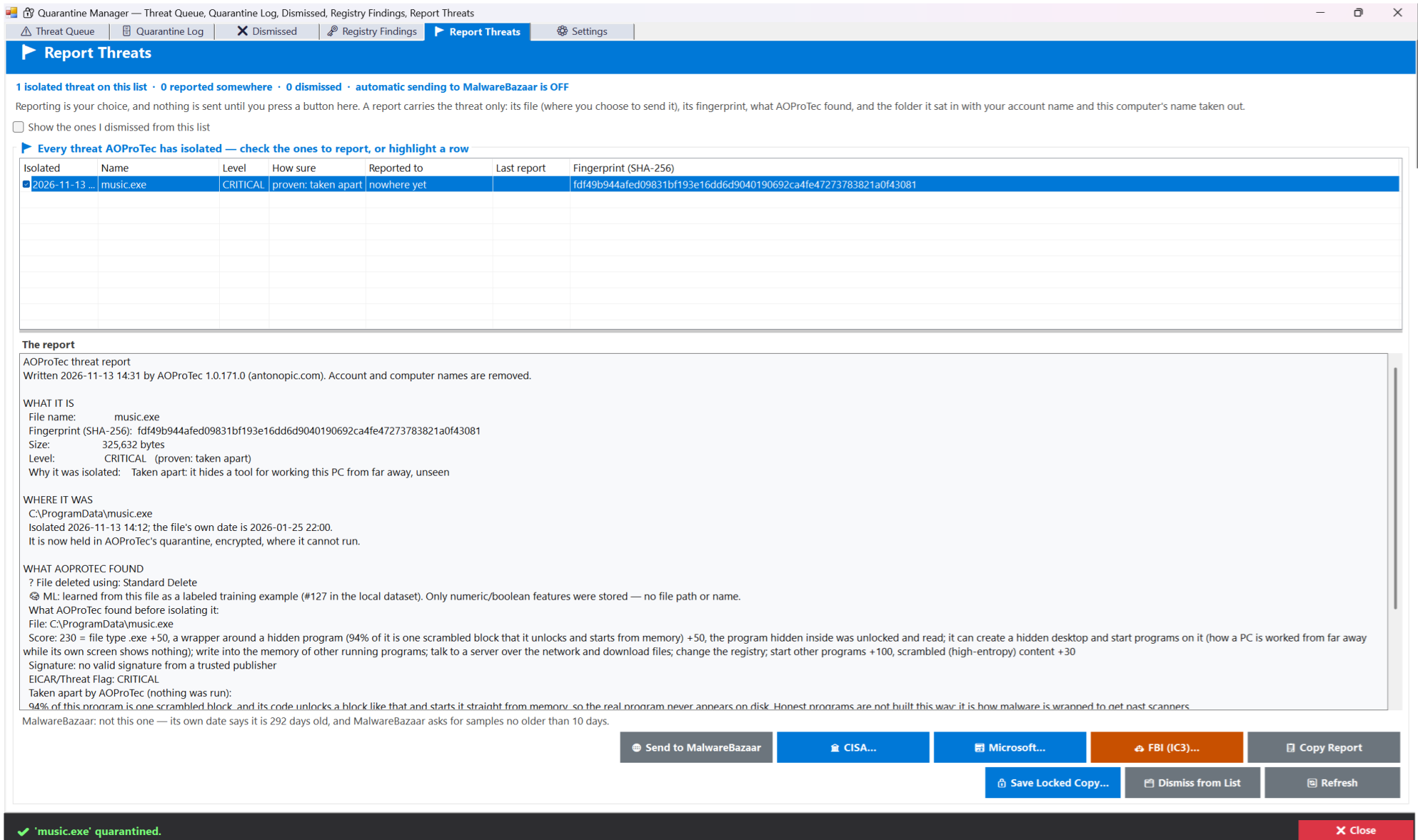
Report Threats in Quarantine manager
Added 23 Nov 2026

Report Threats

Report Threats in Quarantine manager

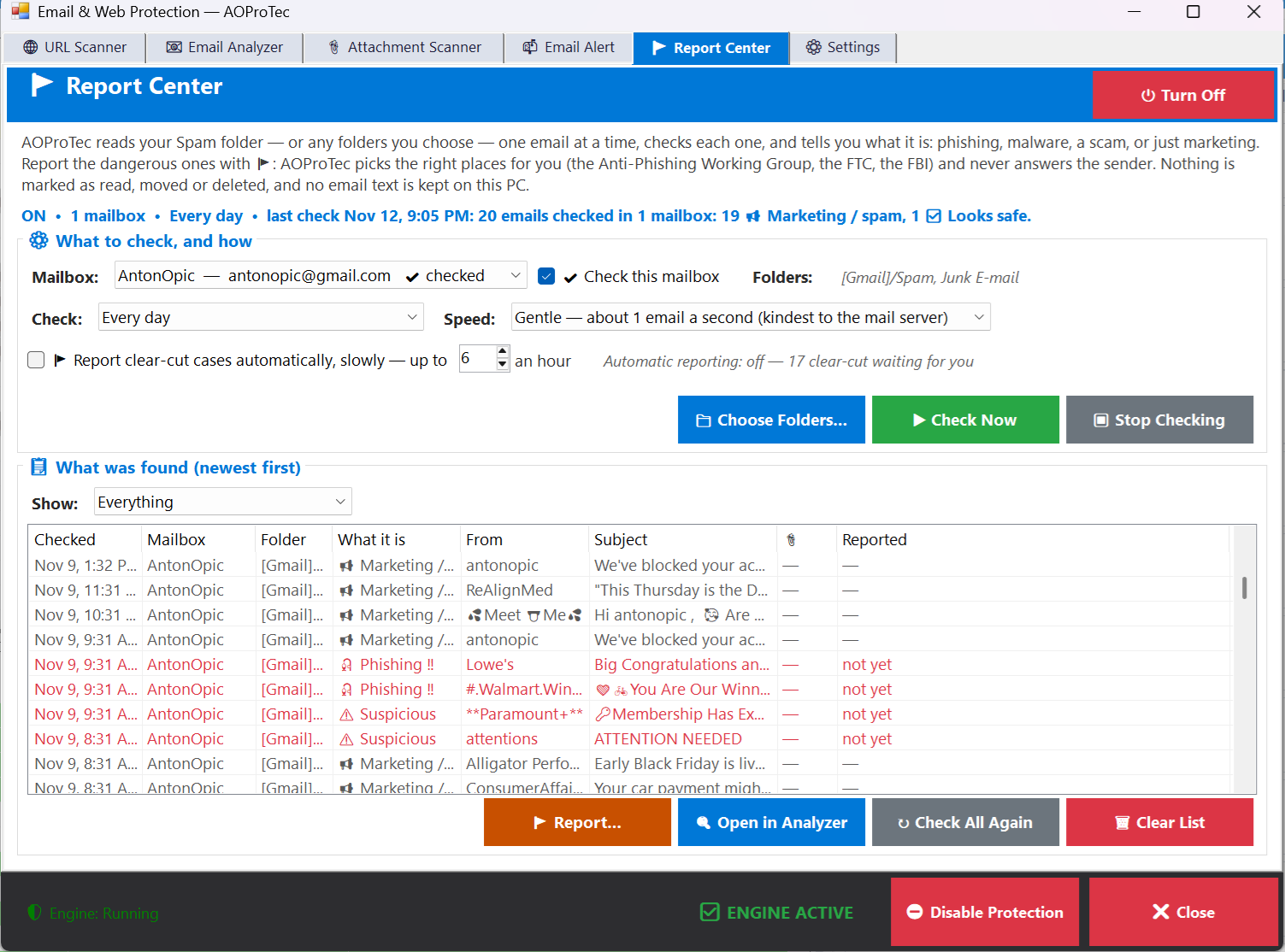
AOProTec Email & Web Protection - Report Center
Added 23 Nov 2026

AOProTec Email & Web Protection

AOProTec Email & Web Protection - Report Center

Detection Rules
Added 23 Nov 2026

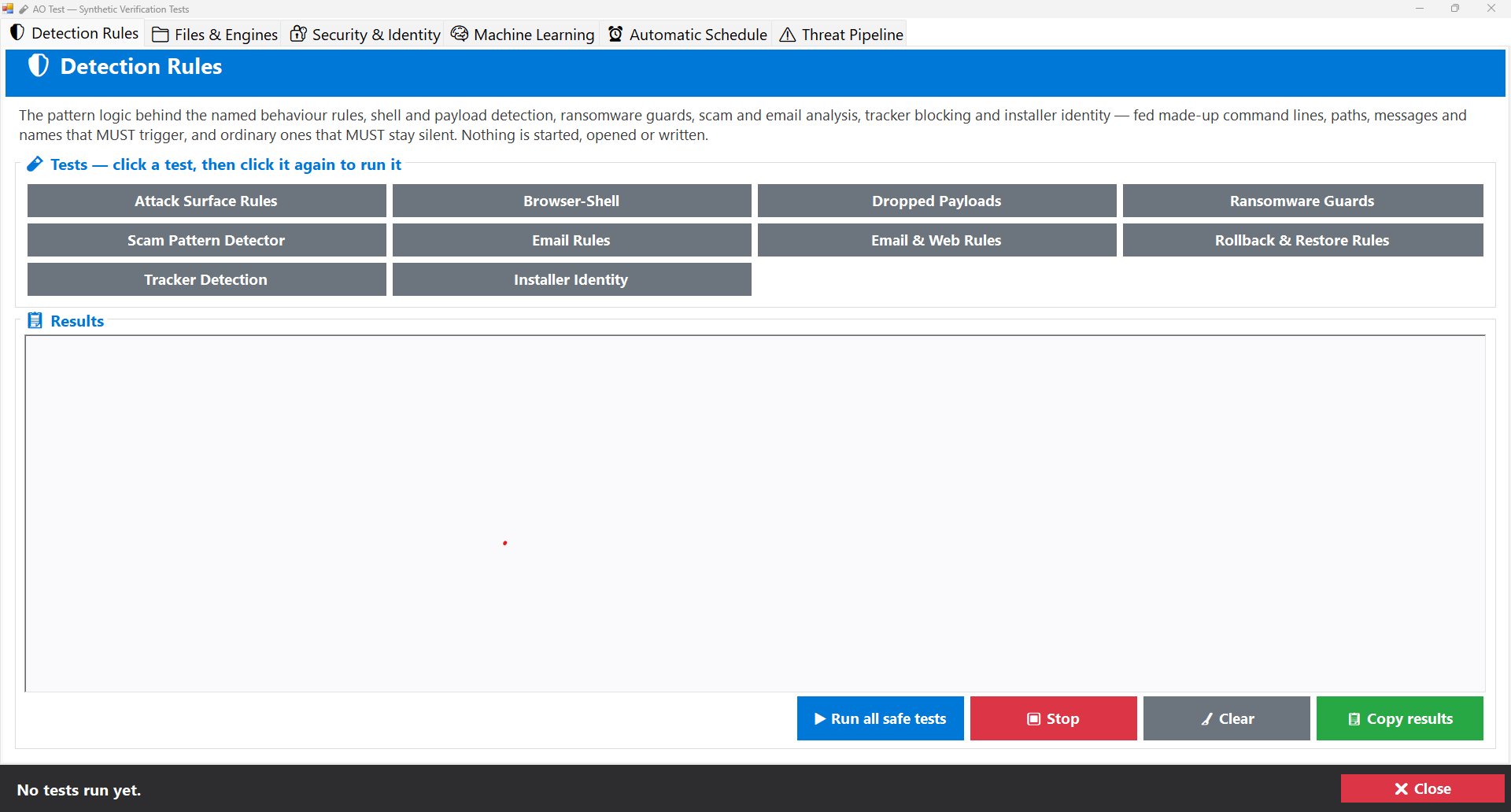
AOTests Detection Rules

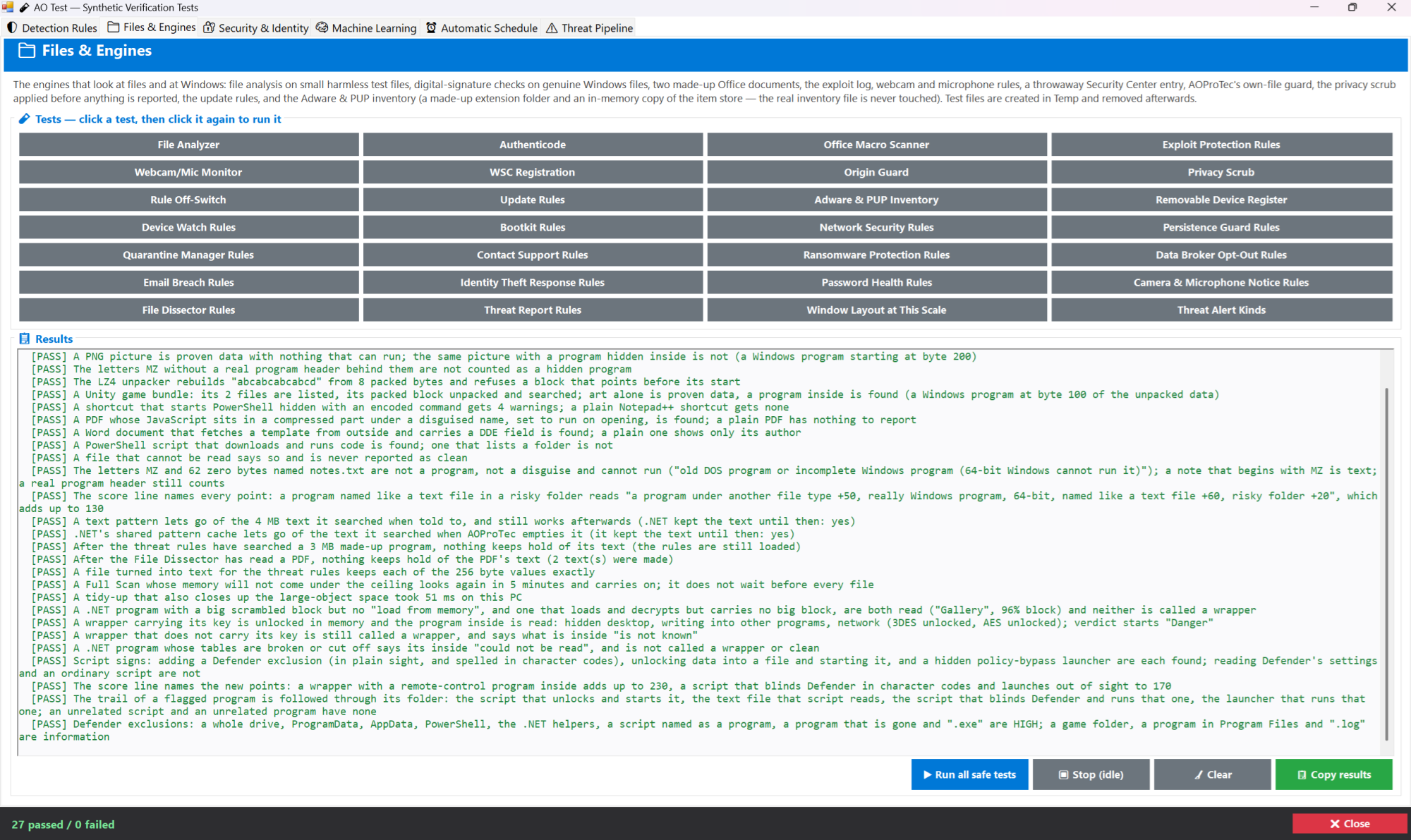
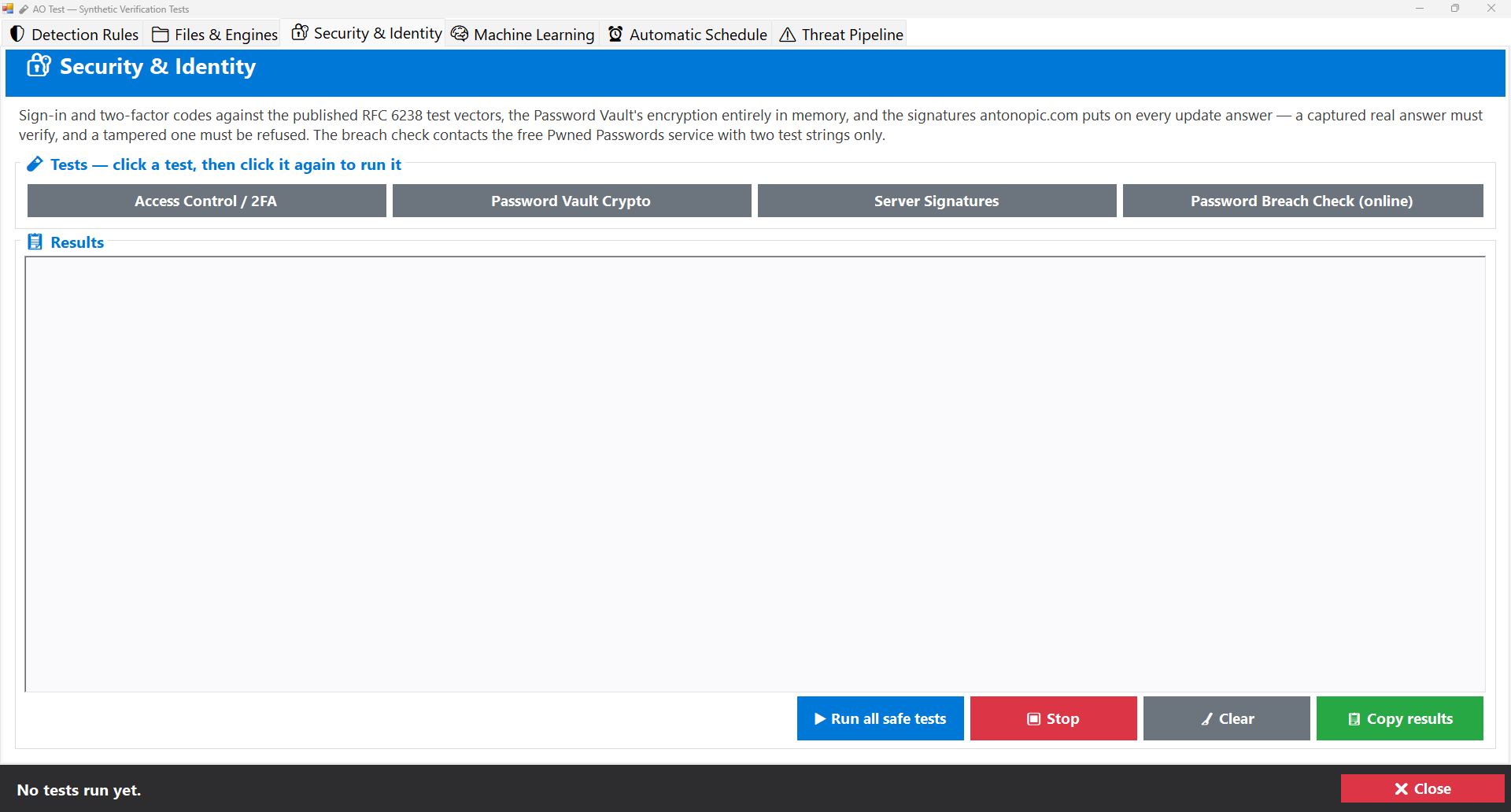
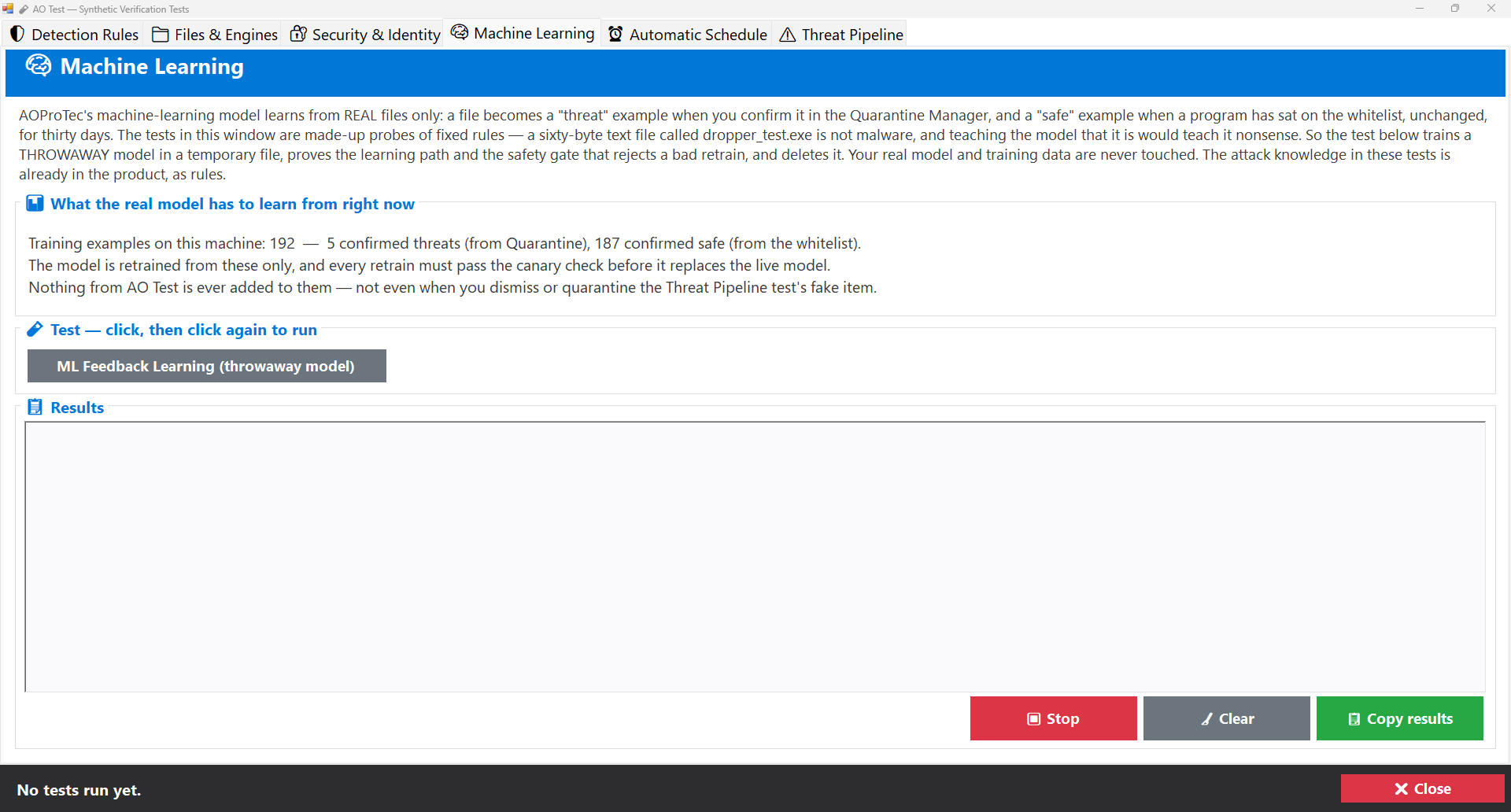
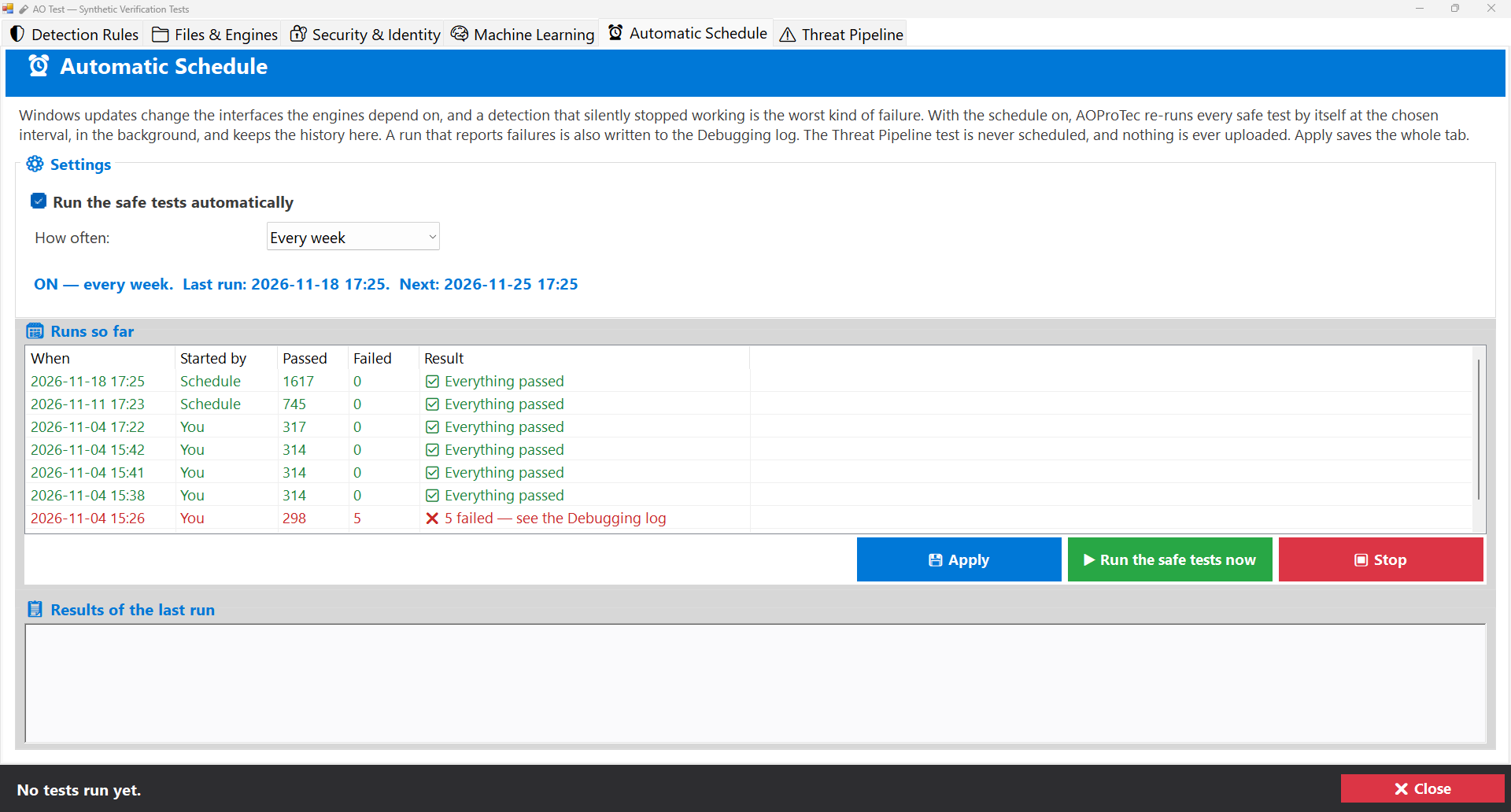
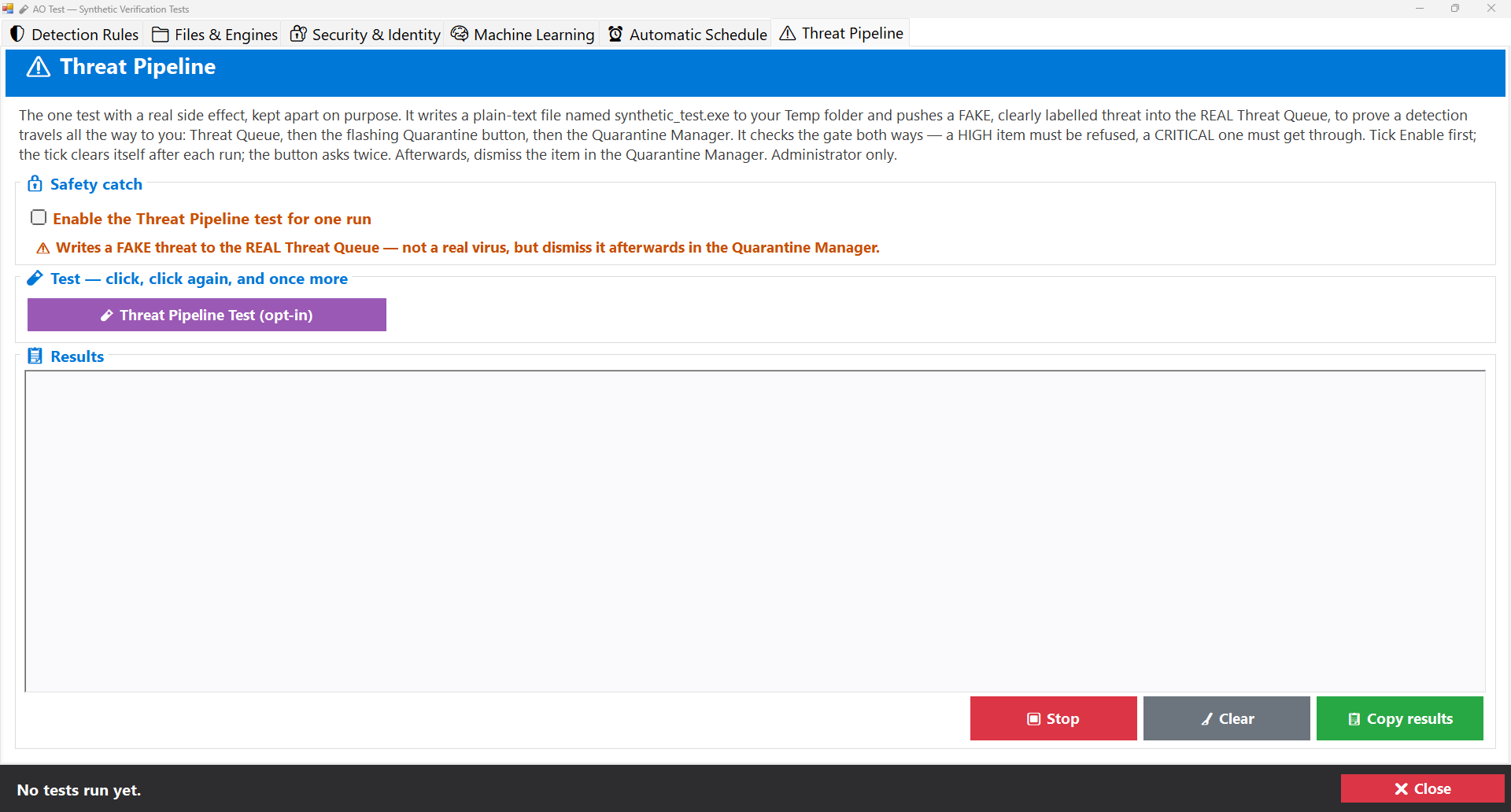
πŸ›‘ Detection Rules β€” the pattern logic itself: the eleven named behaviour rules, browser-started shells, payloads run out of Temp by Java or Windows Script Host, ransomware guards (decoys, raw-disk writes, backup and shadow-copy destruction, even inside an encoded PowerShell command), scam text, email rules and look-alike links, tracker blocking, installer identity. πŸ“ Files & Engines β€” file analysis, digital signatures, Office macros, the exploit log, webcam/microphone rules, Security Center, AOProTec's own-file guard, the privacy scrub, update rules. πŸ” Security & Identity β€” sign-in and two-factor against the published RFC test vectors, vault cryptography in memory, and the server's signatures: a real signed answer from antonopic.com must verify, and the same answer with one digit changed must be refused. 🧠 Machine Learning β€” the learning path on a THROWAWAY model, and a live count of what the real model learns from (see below). ⏰ Automatic Schedule β€” the safe tests re-run by themselves every day, three days, week or two weeks, with the history kept. ⚠ Threat Pipeline β€” the one opt-in test with a real side effect.

Files & Engines
Added 23 Nov 2026

AOTests Files & Engines

AOTests Files & Engines

Security Identity
Added 23 Nov 2026

AOTests Security Identity

AOTests Security Identity

Machine Learning
Added 23 Nov 2026

AOTests Machine Learning

AOTests Machine Learning

Automatic
Added 23 Nov 2026

AOTests Automatic

AOTests Automatic

Threat Pipeline
Added 23 Nov 2026

AOTests Threat Pipeline

AOTests Threat Pipeline

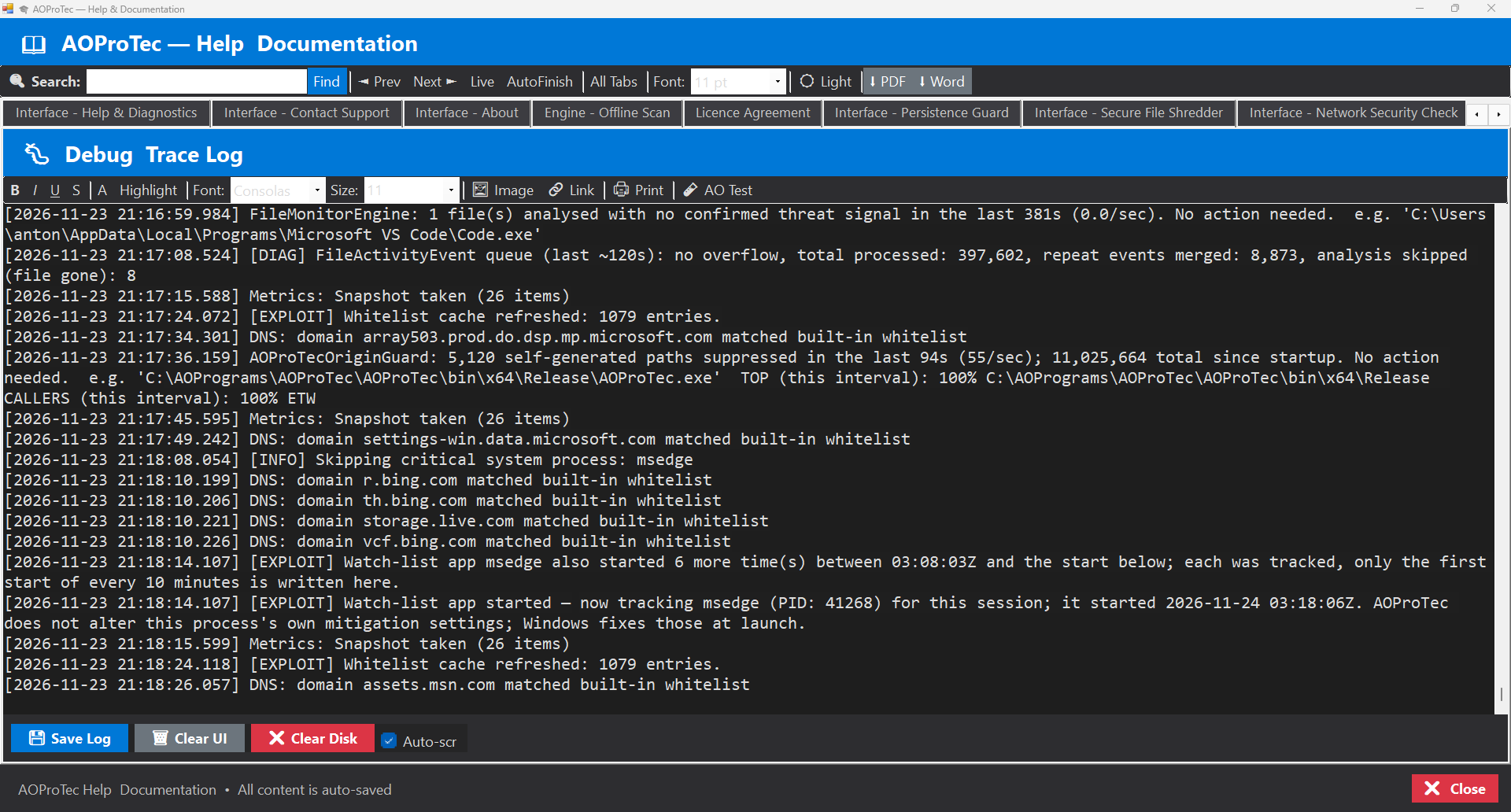
Help Documentation Debug
Added 23 Nov 2026

AOProTec Help Documentation Debug

Help & Diagnostics (this window) β€” Interface Guide
═══════════════════════════════════════════════════════════════

🎯 WHAT THIS WINDOW IS FOR
-------
The complete manual for AOProTec β€” what it does, how it works, and how to use it β€” plus the live diagnostic view of the running application. It is both the documentation and the instrument panel.

πŸ“š HOW THE TABS ARE ORGANISED
-------
Overview start here. Network Isolation & placed early on purpose: it is the tab you Recovery need in an emergency, and scrolling for it while a machine is compromised is no time to be searching. Interface - … one per window: what it is for, every control on it, and how to use them. Engine - … one per engine: what it does underneath. My Notes, Errors, Debug your notes and the live diagnostic tabs.

Each protection area generally has BOTH an Interface tab and an Engine tab β€” one for the window you look at, one for the machinery behind it.

πŸ“ MY NOTES TAB
-------
A free-text scratchpad that saves automatically and survives restarts. βž• Add Note has 🎀 Speak: Windows voice typing (Windows key + H) in the note box. Windows sends the voice to Microsoft's online speech service to make the text, so it needs internet and Online speech recognition turned on (Settings β–Έ Privacy & security β–Έ Speech). πŸ’Ύ Save writes your notes as a table (Done, Date, Note) in the format you pick β€” Text, PDF, HTML, Excel, Word, CSV, Rich Text, JSON, XML, LibreOffice and more. Errors and Debug save the same way (Time, Message).

❗ ERRORS TAB
-------
Genuine failures only. This tab staying empty is meaningful β€” it is the fastest way to tell whether AOProTec itself is healthy. Routine conditions are deliberately kept out of it so that anything appearing here is worth reading.

🐞 DEBUG TAB
-------
The live activity stream: what the engines are doing, moment to moment. Useful when you want to confirm something is actually happening rather than assume it.

It is a VIEW, not the record. Under heavy activity the display skips ahead to keep up and says so β€” nothing is lost from the log file on disk, only from what is drawn on screen. Detection never depends on this window being open.

While this window is hidden in the tray it takes no work at all. When you open it, it shows "⏳ Loading…" and then the newest 1,000 lines from the log files at once β€” no catching up β€” and carries on live from there.

The toolbar carries Print and πŸ§ͺ AO Test, which runs the synthetic verification suite β€” see the AO Test tab.

πŸ’Ύ WHERE THIS CONTENT LIVES
-------
Tabs are written to %APPDATA%\AOProTec\Help. Copying tabs.xml to another machine carries every tab with it, including any written by hand. The .rtf files beside it are regenerated on each launch, so they do not need copying.

Content maintained in code takes precedence over the stored copy, so updated documentation always reaches the screen rather than being blocked by an older saved version.

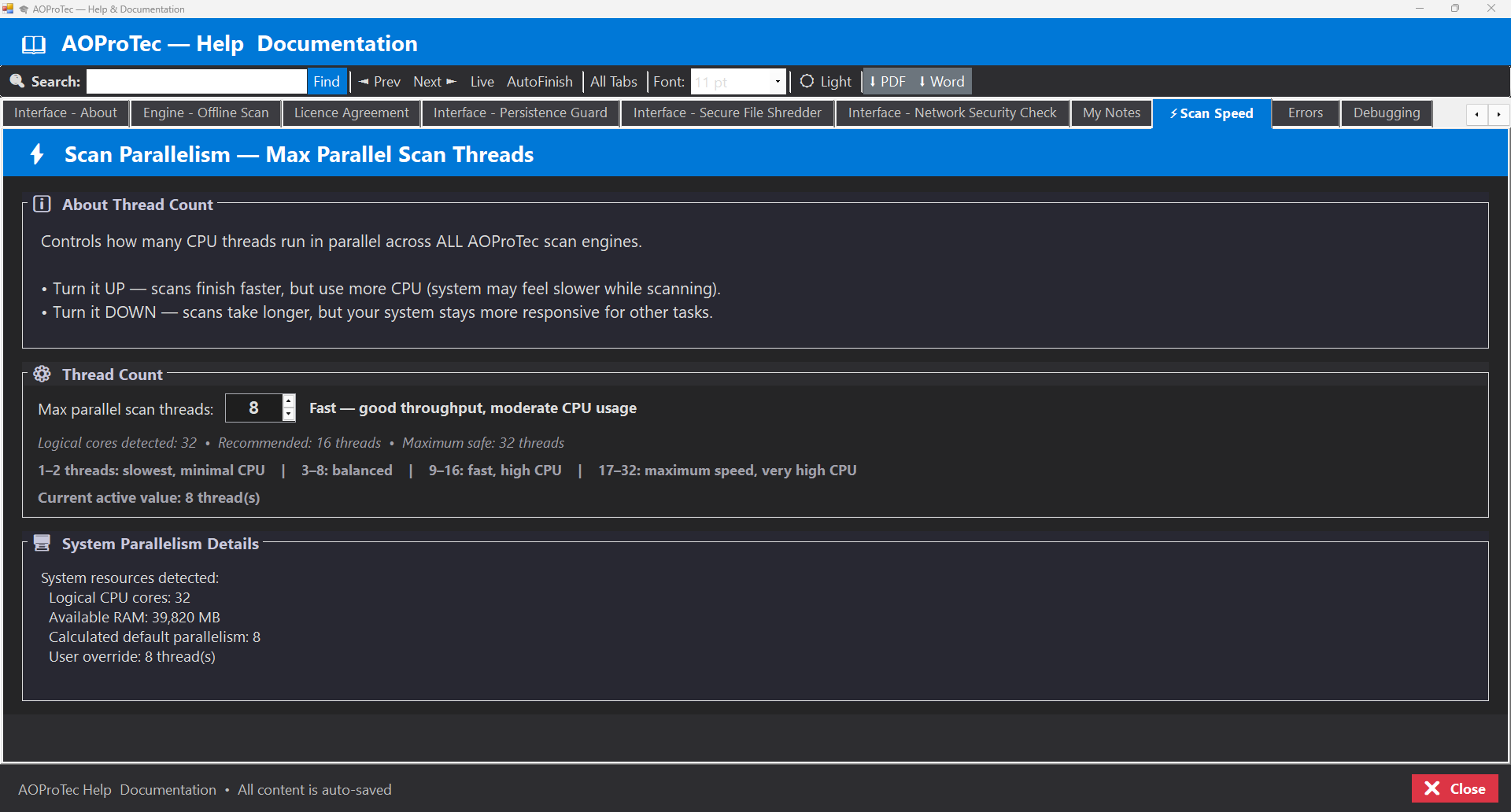
Help Documentation Max Parallel Scan Threads
Added 23 Nov 2026

AOProTec Help Documentation Max Parallel Scan Threads

Help Documentation Max Parallel Scan Threads

Development updates

22 November 2026

DNS Protection waits for the hosts file

In AOProTec 1.0.210, a block that finds the hosts file busy waits a moment and tries again by itself.

Read the whole updateClose this update

When DNS Protection blocks a name, such as an advert network or a tracker, it writes a line for that name into Windows' hosts file, so no program on the PC can reach it.

Another program can hold that file open for a moment. On my own PC, Outlook asked for five advert addresses within three seconds, and the file was busy for one of them. In AOProTec 1.0.210, AOProTec waits and tries again by itself: five tries in under two seconds, in the background, so checking other look-ups never waits for it. Switching DNS Protection off waits for the file too, so the blocks are really lifted.

I found it during an evening check of both test PCs, and AOProTec's own log showed exactly what happened, down to the quarter of a second.

21 November 2026

Your Google sign-in, with its date and time

In AOProTec 1.0.209, Threat Alerts shows when your Google sign-in was made, and the log records it.

Read the whole updateClose this update

Threat Alerts can send you an email or a text through your own Google account when AOProTec finds something. In AOProTec 1.0.209, AOProTec keeps the date and time of that sign-in.

The Threat Alerts page now reads "Signed in as" your address, followed by "since" the date and time. Signing in and signing out are each written to AOProTec's log with the date and time, and the sign-in check that runs every 6 hours names the date of the sign-in it checked. So you can always see when your alert delivery was connected.

The idea came from a morning of checking: I wanted to know exactly when my own sign-in had been made, and now AOProTec tells me.

21 November 2026

Tamper Protection and Windows Defender, side by side

In AOProTec 1.0.208, Tamper Protection checks the fingerprint of a rollback copy when Windows Defender scans it.

Read the whole updateClose this update

Rollback & Restore keeps copies of your files, so they can be put back after an attack. Since 1.0.201, Tamper Protection watches those copies: only AOProTec itself may write there.

Windows Defender runs on almost every Windows PC, and its scheduled scan opens files all over the disk, the copies too. In AOProTec 1.0.208, Tamper Protection checks such a scan with proof. The program must be the real Windows Defender, in its own folder and signed by Microsoft. The copy is read again, and its SHA-256 fingerprint must be exactly the one recorded when it was saved. Two minutes later it is read once more. The Status line shows how many copies Defender's scan read, each one proven exactly as saved.

Every other program that touches the copies, and any copy that was created, renamed, deleted or changed, is reported as before.

The idea came from watching AOProTec overnight on my own PC, with the console locked, while Windows Defender ran its nightly scan.

20 November 2026

The Sandbox, rebuilt: run it behind Windows' own walls, and see what it did

In AOProTec 1.0.207, a program you do not trust yet runs behind walls that Windows itself enforces, and a finished run comes with a report of what it did.

Read the whole updateClose this update

A sandbox is a place to try a program you are not sure about. In AOProTec 1.0.207 it runs at one of three levels that Windows itself enforces. Locked uses the walls Windows builds around Store apps: the program cannot read or change your files, it has no network unless you allow it, and it writes only into a folder of its own that is removed when the run ends. Low keeps it from changing your files. Medium runs it as a normal user without administrator rights. Whatever the program starts runs inside the same walls, and the run ends when the last of them ends.

When a run is over, its report lists the files it made, changed and deleted, the places it tried to write but was refused, the programs it started with what each was told to do, the servers it tried to reach, and any startup entry that appeared while it ran. Persistence Guard looks at the startup places before a run and again after it, and a new startup entry that points at the program, or at a file it made, sends the program's file straight to the Threat Queue, where Quarantine Manager examines it. Windows and updaters renew their own startup entries at any time, so the report's Startup tab says for each new entry what ties it to the run, and Persistence Guard judges each entry by itself. Scripts run through their own Windows program inside the same walls, and the Run tab shows who signed a file and where it came from before it runs.

On our test PCs, a program started inside the Locked walls could not reach the internet, could not write into the Documents folder, and its own folder was gone when the run ended. Quarantine Manager's Test in Sandbox now uses the Locked walls too, and writes what it saw into the file's record. Where Windows Sandbox is turned on (Windows Pro, Enterprise or Education), one button hands a file to it: Microsoft's own throw-away copy of Windows.

19 November 2026

Rootkit Detection, rebuilt to find what hides

In AOProTec 1.0.205, Rootkit Detection looks at everything a rootkit hides in two ways that a rootkit cannot both control.

Read the whole updateClose this update

A rootkit hides. It keeps a program, a file, a service or a driver out of the lists Windows gives every program, so ordinary tools show a clean PC. In AOProTec 1.0.205, Rootkit Detection looks at each of those things in two ways that a rootkit cannot both control, and runs every hour on its own.

Running programs: Windows' list is checked against every process and thread number, asked for directly, and against the programs Windows saw start. Windows functions: the functions every program uses to ask for its lists are compared, in memory, with Windows' own file on disk, and every change is followed to where it leads. Drivers: every loaded driver must have its file and a valid signature, and a driver Windows refused to load is reported. Services: the service list is checked against the registry. Files: Windows' main folders are listed by Windows and also read from the disk itself. Hidden registry names and the core Windows files are checked too.

Four new tabs show what each scan read: Programs, Drivers, Services, and Files & Registry. Every finding goes to the Threat Queue with what it is and what to do, whether you started the scan or the hourly one did. The settings are simpler too: the seven checks run side by side, sized to each PC, so there is no thread number to set. On our older test laptop, a full scan examines about 33,000 items in 4 to 11 seconds, and a scan that finds nothing says so plainly. Its report lists every program, driver, service, file name and registry name the scan read, with what it found for each, and every scan's report is kept for as many days as you choose.

19 November 2026

Two buttons that say what they do

In AOProTec 1.0.204, Dismiss is "Dismiss & Learn" and Quarantine is "Quarantine & Lock Away".

Read the whole updateClose this update

When AOProTec finds something, it waits in the Threat Queue for your decision, and two buttons make it. In AOProTec 1.0.204 both say what they do.

Dismiss is now "Dismiss & Learn". Dismissing means "this is not a threat", and AOProTec learns from your answer. For a file, the model learns it as clean. For a network, startup, boot or device finding, AOProTec records it as yours. Nothing is removed, and the Dismissed tab can undo it.

Quarantine is now "Quarantine & Lock Away". The file is encrypted into the vault, and it can be brought back from the Quarantine Log. On a row with no file, the button says what it does there: a device is switched off, a startup entry is taken out, a program is stopped.

The idea came from using AOProTec myself. I dismissed a finding that was my own doing and saw that the button did not say AOProTec would remember my answer. Now it does.

19 November 2026

How much disk should your restore points get?

AOProTec 1.0.203 works the answer out for your PC and says it in one line.

Read the whole updateClose this update

Rollback & Restore keeps restore points of your protected folders inside a disk budget you set. AOProTec 1.0.203 explains that budget in plain words and works out a number for your own PC.

One restore point may use up to 60 % of the budget, and the rest is room for older versions of files that change. So a budget of 10 GB lets one restore point hold 6 GB, and 20 GB lets it hold 12 GB. Documents are covered first, then pictures, then other files, so a small budget still covers what matters most.

A new line on the Settings tab, "For this PC", does the arithmetic. It looks at what the newest restore point covered, what did not fit and what the disk has free. When everything fits, it says the budget is large enough. When more would fit with a larger budget, it names the number. When your folders are larger than the disk can spare, it names a budget the disk can afford.

On my two test PCs it suggested 20 GB for the laptop, where everything then fits, and 25 GB for the development PC, whose folders are far larger than its free disk.

Until you save a budget of your own, it follows your disk: 5 % of its size, between 10 and 50 GB. And while the disk has less than 10 GB free, a red line says so and what to do, and a button opens Windows' own storage page.

Before it was signed, this build ran AOProTec's own tests inside the real program on my laptop: 1,878 passed, 0 failed.

19 November 2026

After an attack: see what changed, put it back.

AOProTec 1.0.202 lists the files an attack changed and puts them back in one step, keeping the damaged ones first.

Read the whole updateClose this update

AOProTec makes a restore point of your protected folders every day. Version 1.0.202 uses it for the moment that matters most: after ransomware.

Rollback & Restore, Find a File has a new button, Show What Changed. It compares a restore point with the PC as it is now and lists every file that is different or no longer there. They are selected for you. Unselect anything you changed yourself, press Put Back Selected, and the saved versions are written back. The files as they are now are kept first, in their own restore point, so nothing is lost by putting back.

For 14 days after Ransomware Protection confirms an attack, a line on that tab says what happened and what to do, step by step, and the restore point chosen is the last one made before the attack. Nothing is put back without you.

A restore never brings a threat back. When a threat sat in a protected folder while a restore point was made, its content is in that restore point too. AOProTec leaves out any file whose saved content it quarantined, or knows from the threat list, and names it in the result.

Before it was signed, this build ran AOProTec's own tests inside the real program on my laptop: 1,869 passed, 0 failed.

19 November 2026

One file back, without touching the rest.

AOProTec 1.0.201 keeps each file's content once, makes a restore point every day by itself, and can put back a single file.

Read the whole updateClose this update

Automatic Rollback & Restore is the way back after an attack: it keeps the content of the files in your protected folders, the startup entries and security settings an attacker changes, and the hosts file, as they were at one moment. In AOProTec 1.0.201 it has a new tab, Find a File. Choose a restore point, type part of a file's name, and the list shows the file with every saved version of it. One button writes it back where it was. Another writes it under a folder you choose, so you can look at an older version beside the one you have.

Each file's content is now kept once, filed under its fingerprint, and a restore point is a list of files. A new restore point reads only the files that are new or changed. On my test laptop the first restore point of this build listed 17,175 files of 6.0 GB. They were 6,243 different contents, and they take 3.0 GB on the disk.

Documents are covered first, then pictures, then other files, the newest first. A line above the list says what the newest restore point covers and what it does not, with counts and sizes, so you can set the disk budget against real numbers.

AOProTec makes one restore point a day by itself, and one before every quarantine. A quarantine saves the startup entries and the hosts file at once, and its files afterwards in the background, so the threat leaves first. On my test laptop that first step took 136 thousandths of a second.

Select a restore point and the window says what putting it back would do, counted from the PC as it is now: how many files are the same and stay untouched, how many would be replaced, how many would come back. Whatever a restore replaces is kept first, in its own restore point, so a restore can itself be undone. A saved copy is checked against its fingerprint before it is used.

The restore points and the saved content are open only to Windows and to administrators, and Tamper Protection reports any other program that changes them.

Before it was signed, this build ran AOProTec's own tests inside the real program on my laptop: 1,860 passed, 0 failed.
19 November 2026

An email alert can say who really sent it.

AOProTec 1.0.200 reads the mail server's own sender check, and its web guard shows what it stopped.

Read the whole updateClose this update

Every mail server checks, for each email it receives, whether the email really comes from the address it shows, and writes the answer into the email. AOProTec 1.0.200 reads that answer. An Email Alert now says "Clean - sender confirmed" when the check passed. When it failed, the alert is a warning, because the address may be forged even though it reads exactly like the one on your watch list.

Before signing, I had the new build judge mail that AOProTec had already listed in three mailboxes I look after. It only read: nothing was marked as read, moved, deleted or sent. Of 61 emails from senders on the watch lists, the mail server had confirmed all 61, and AOProTec called all 61 clean. Of 500 emails in the spam folders, the server's check had failed on 8, and all 8 are now called phishing. Eight more emails carried a well-known shop's name on an address that is not the shop's; AOProTec now notices that as well.

The Report Center sends a report by itself only when you switch that on, and only for a clear-cut email. Clear-cut now means two different kinds of evidence: who sent it, what it says, where its links go, what is attached. Of those 500 emails, 8 are clear-cut.

Email & Web Protection has a new first tab, Live Guard. One line says whether the guard is working. The next shows what it checks against. The list shows every site it stopped, and for the selected row what it is and what to do. On my test laptop a look-up of a listed name was stopped and written to that list within two seconds.

The same tab shows Windows' own web blocking, which is off on a new PC, and has a button to turn it on. I turned it on through AOProTec and asked for Microsoft's test page: Windows blocked it, and AOProTec read Windows' record of the block.

Also in this version: look-alike sites are judged by one rule shared with Scam Protection, the Attachment Scanner puts each file through the same ten checks as Check a File, and every result in the window says what it is and what to do.

Before it was signed, this build ran AOProTec's own tests inside the real program on my laptop: 1,803 passed, 0 failed.

Written as the work happens. Nothing here is written in advance. πŸ“¬ Get the news by email β€” a few times a year.

Page 1 of 5 Β· 46 updates